
How do I link two records?
Short answer
In Records, search and select a record, press + New, choose the Link card, search and select the other record, choose a relation, press Link.
Before you start
You need to be signed in to GilbApp on a computer, with a vault you can write to. The other record must already be in the vault open on screen. The pictures show a made-up person on a test site; your screen shows your own name and address.
Words used here (5)
- record
- A record is one piece of data with its own address, such as a person, a place, a thing or a note.
- relation
- A relation is a named link between two records, such as part-of or connected-to, that says how they are related.
- GilbApp
- GilbApp is the app, opened in a web browser at https://gilb.com/app, where you open, fill and share your vaults.
- field
- A field is one named fact on a record, such as its title or a due date; its name comes from GilbVeda.
- virtual folder
- A virtual folder is a view that groups records and files without moving them; each may sit in several folders.
Steps
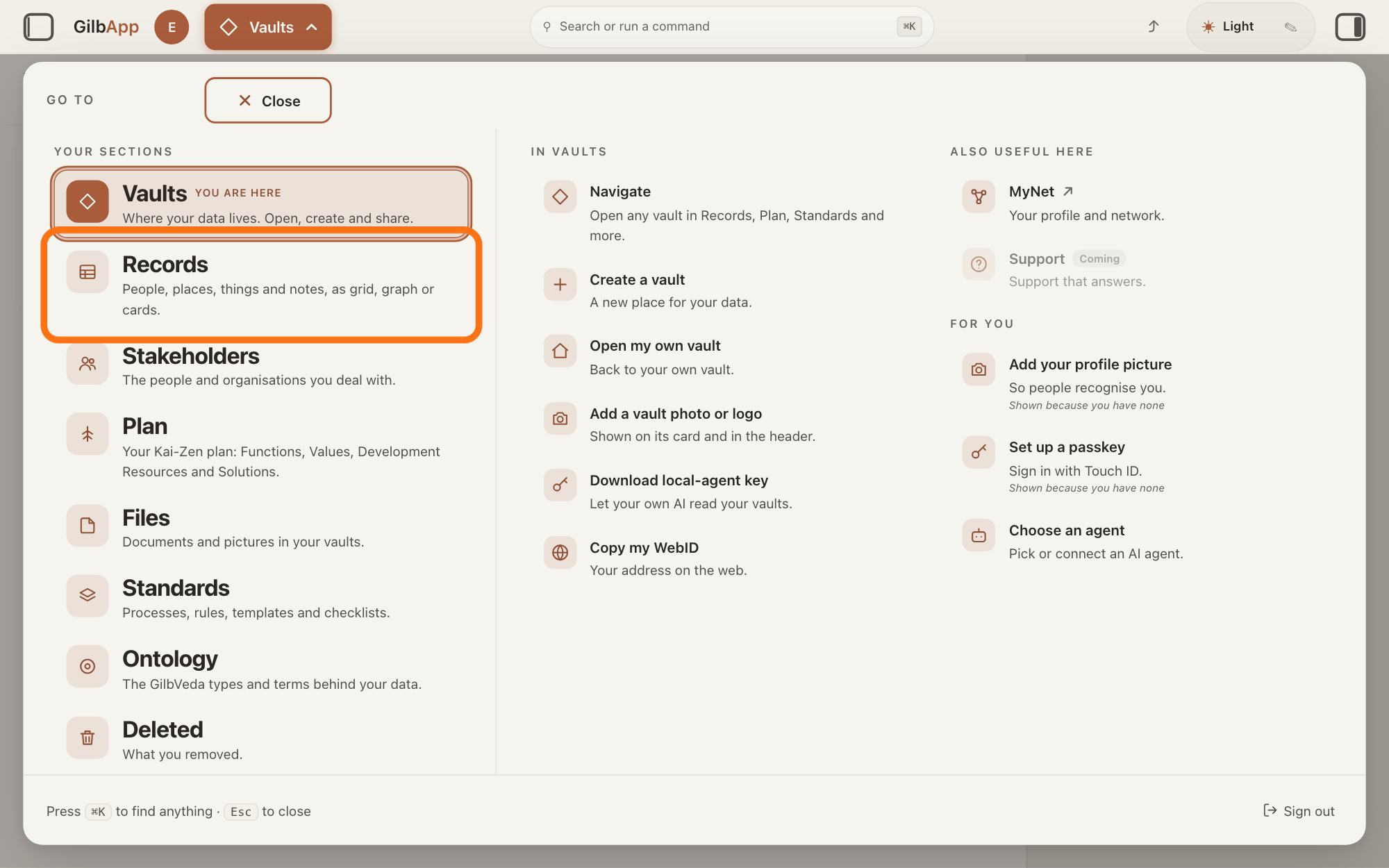
Press Main menu at the top left and choose Records.
Press Main menu, next to your profile picture at the top left, and under YOUR SECTIONS choose Records. The button shows the name of the section you are in, such as Vaults.
Show as text
The panel headed "GO TO" is open over "Your vaults". In the left column under "YOUR SECTIONS", the outlined row is "Records". Click it.
More about this
A panel headed GO TO opens; Records reads People, places, things and notes, as grid, graph or cards. A record is one piece of data with its own address, such as a person, a place, a thing or a note. Records shows the vault you picked in Vaults, or your own vault if you picked none; a vault is the place where a person or a group keeps their records. You can also press Records on a vault's card in Vaults.
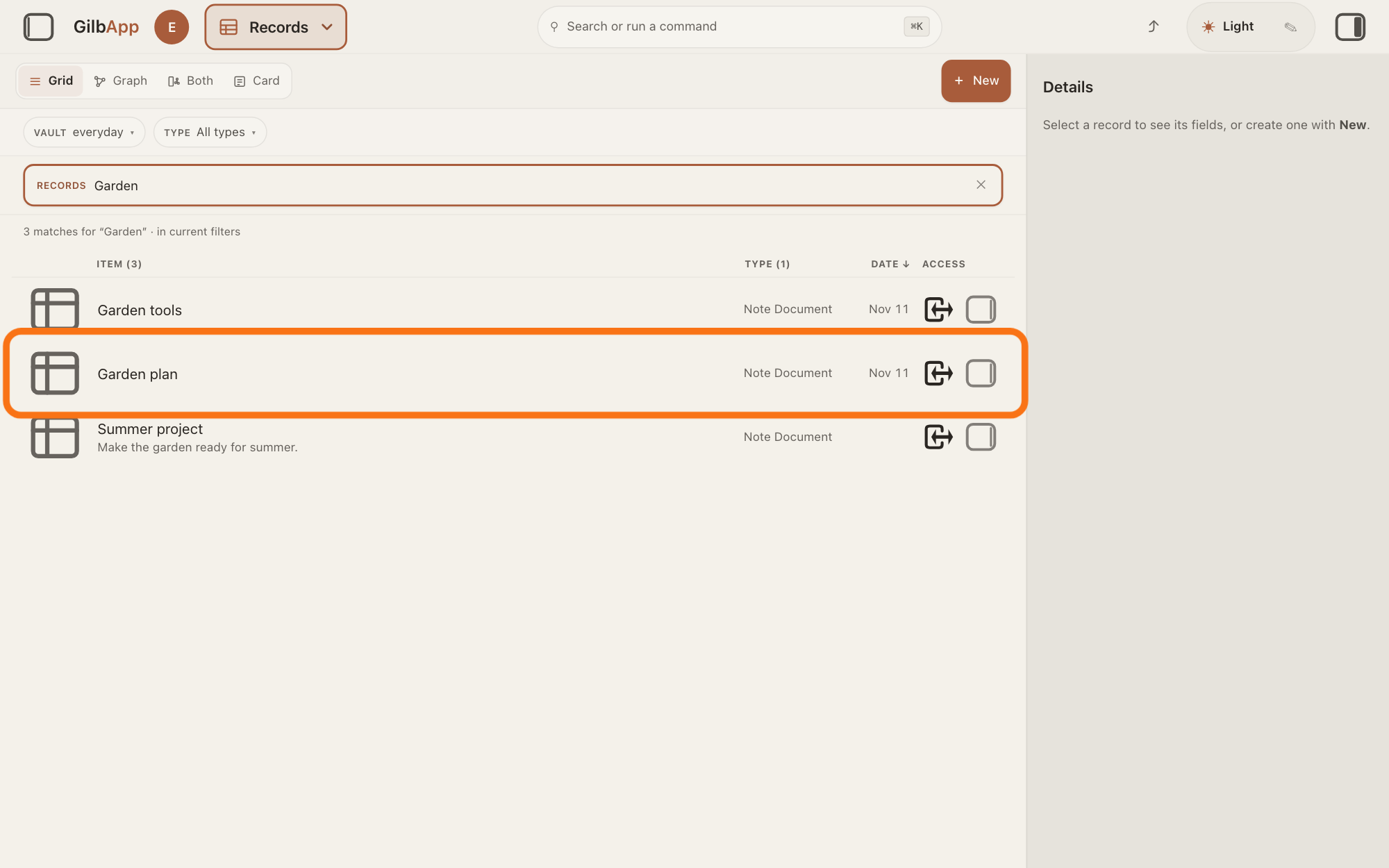
Search and select the first record in the list.
Type a word of the record's name in the search box marked RECORDS above the list, and click the record in the list. The record opens in the middle of the screen with its fields, and the right pane, headed Actions, holds what you can do with it.
Show as text
In the middle, "Garden" is typed in the search box marked "RECORDS", and the list shows three records. The outlined row is the note Garden plan. Click the first record of the two you want to link.
More about this
The answer on finding a record shows more about the search. A folder's row opens the folder instead. The search box shows Search in current filters… while a filter is on, and Search your vault… otherwise. You can also click a row without typing. VAULT and TYPE above the box narrow the list; you do not need them here. Show all records, in the bar with the views, right of Card, brings the list back.
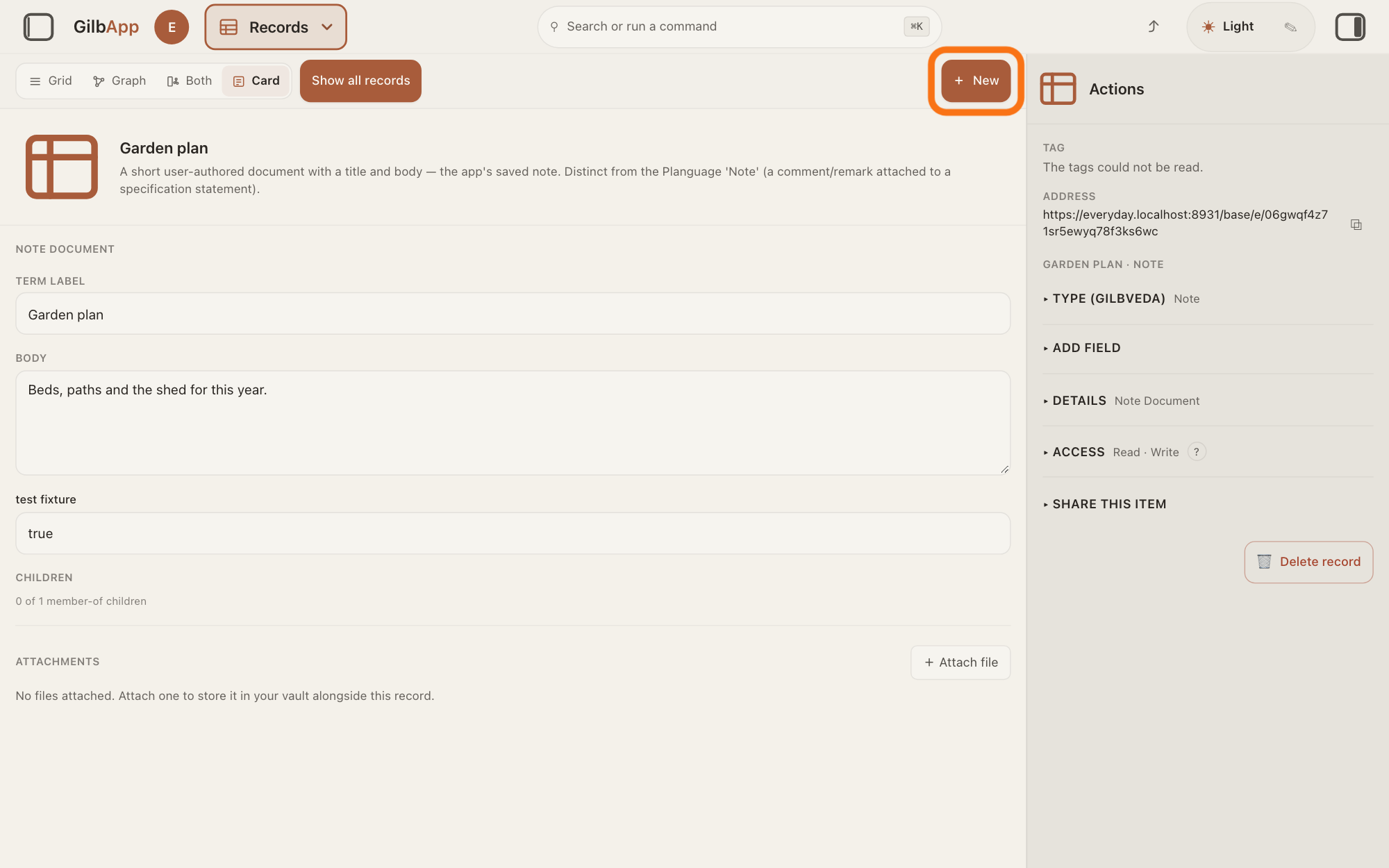
Press + New.
Press + New at the top right, above the record. A panel headed New opens with five cards.
Show as text
The note is open in the middle; "Show all records" sits in the bar beside "Card". At the top right of the middle, the outlined button reads "+ New". Click it.
More about this
The cards are: Create a record and link it to your record, Link your record to a record that already exists, Create a record on its own, Create a virtual folder, a view over records that stay where they are, and Upload a file. With no record selected, the two linking cards are grey and say Select a record first. + New is grey where you may not write; its hover text says why. Close at the top right closes the panel and makes nothing.
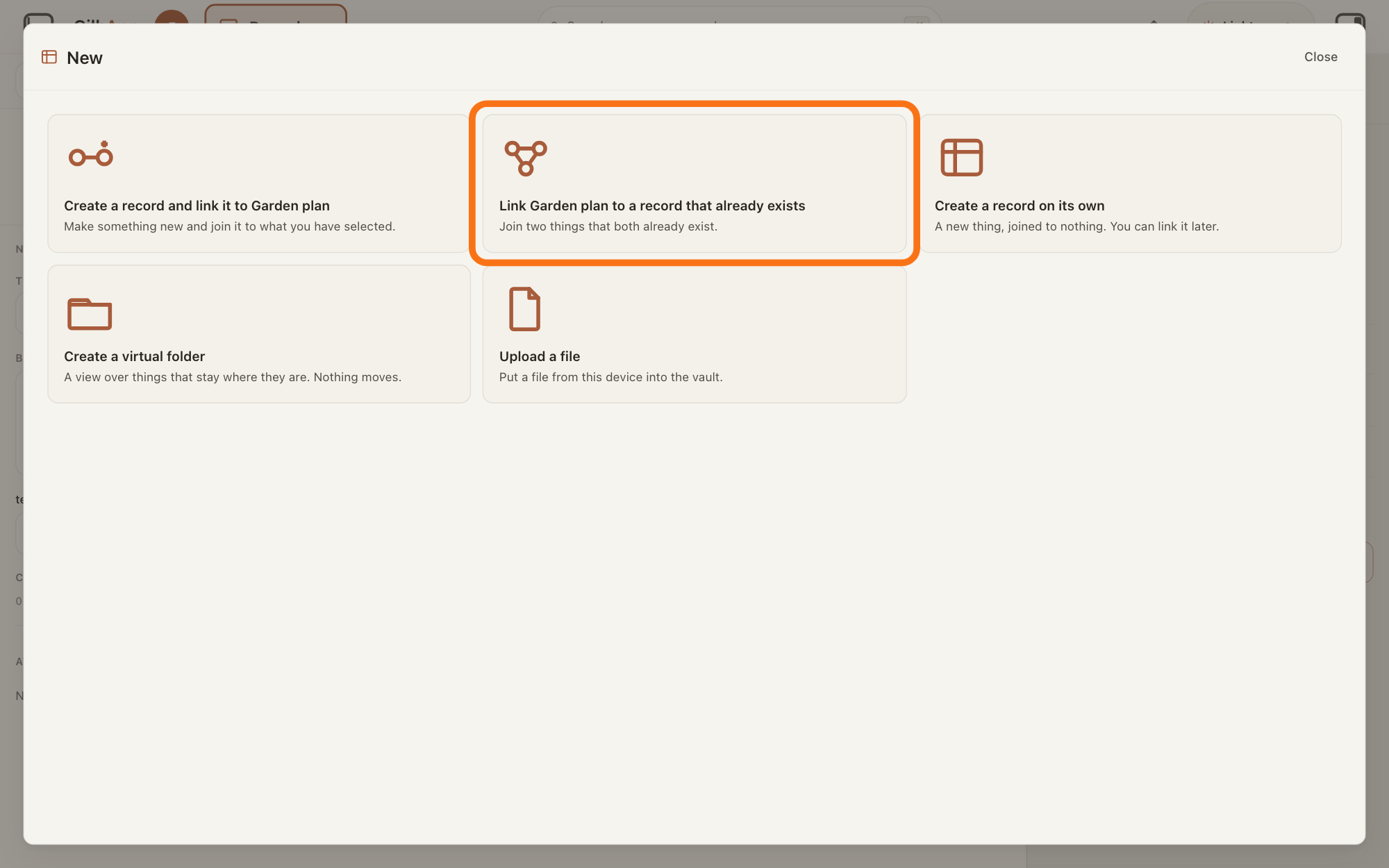
Choose the card that starts with Link.
Choose the second card: Link, your record's name and to a record that already exists. The panel is now headed New connection to existing.
Show as text
A window headed "New" shows five cards; the first two name the open record. The outlined second card reads "Link Garden plan to a record that already exists" and "Join two things that both already exist." Click the card that starts with "Link".
More about this
Under the card's name it says Join two things that both already exist. If the other record does not exist yet, choose the first card instead; Deeper says how it works.
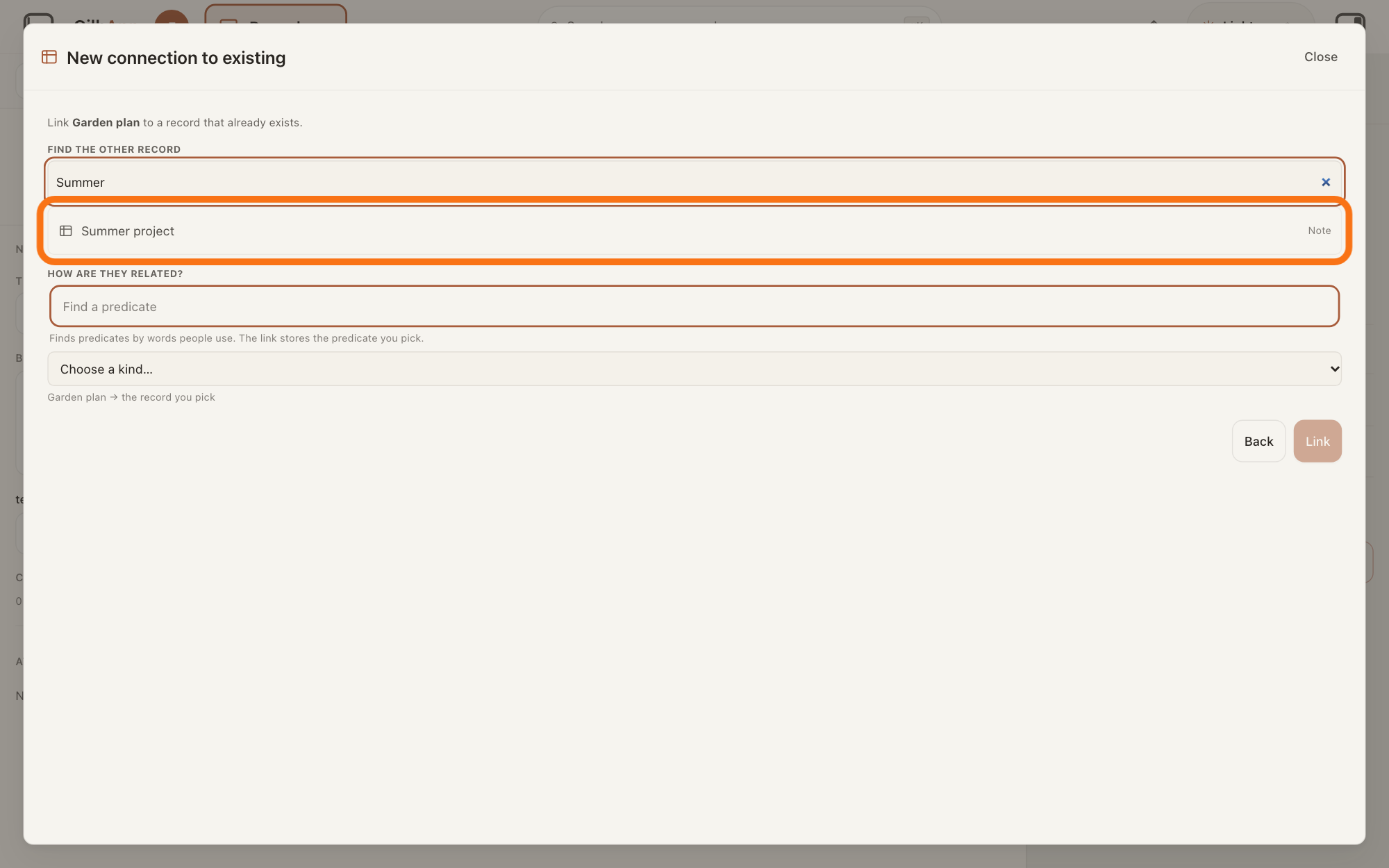
Under FIND THE OTHER RECORD, search and select the other record.
Type a word of the other record's name in the box that shows Search this vault… and select it in the list under the box. The row you select is marked.
Show as text
The window is headed "New connection to existing". Under "FIND THE OTHER RECORD", "Summer" is typed, and the outlined row under the box reads "Summer project" with "Note" at its right. Type part of a name and click the other record.
More about this
The list shows up to 20 records of the open vault, each with its type on the right, before and while you type; the record you started from is not in it. Two records with the same name show the end of their address beside the name. With nothing found it says Nothing in this vault matches and what you typed; in a vault with no other record it says No other record in this vault yet.
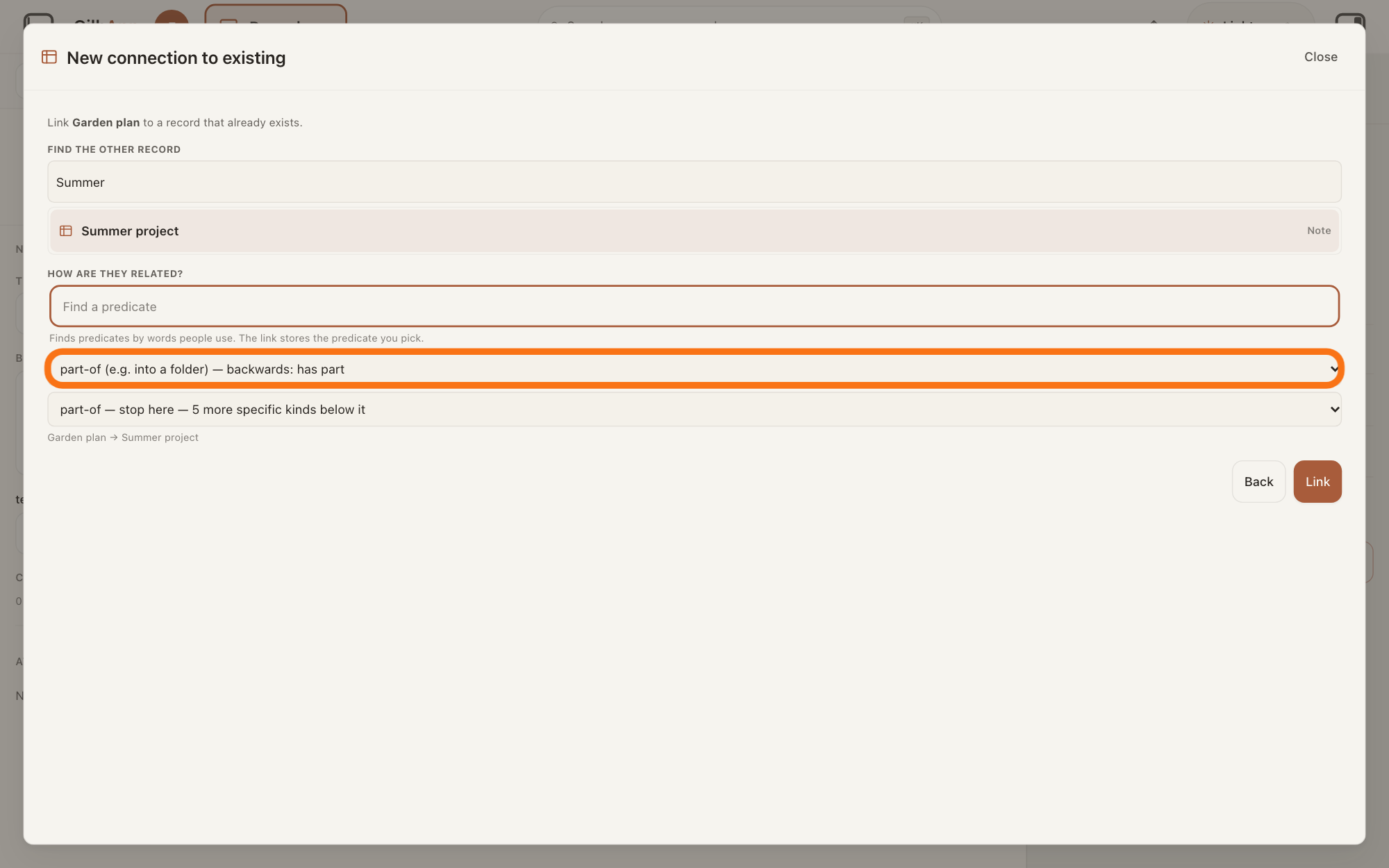
Under HOW ARE THEY RELATED?, choose the relation.
In the list that shows Choose a kind…, choose the relation, such as part-of or depends-on. If a second list opens under it, choose a more specific relation there, or keep its line with — stop here, which keeps the relation you chose.
Show as text
Under "HOW ARE THEY RELATED?" are the box "Find a predicate" and lists. The outlined first list shows "part-of (e.g. into a folder) — backwards: has part"; a second list under it reads "part-of — stop here — 5 more specific kinds below it". Choose the relation in the first list.
More about this
A relation is a named link that says how two records are related; the list comes from GilbVeda, the shared list of terms, so it can change. directed means it reads one way, from your record to the other; symmetric — no direction implied reads the same both ways, and backwards: says how it reads from the other end. To find one by a word, type in the box that shows Find a predicate, a predicate being the name of a relation, and choose from what it lists; with none it says No predicate matches. The line under the lists shows your record, → and the other record.
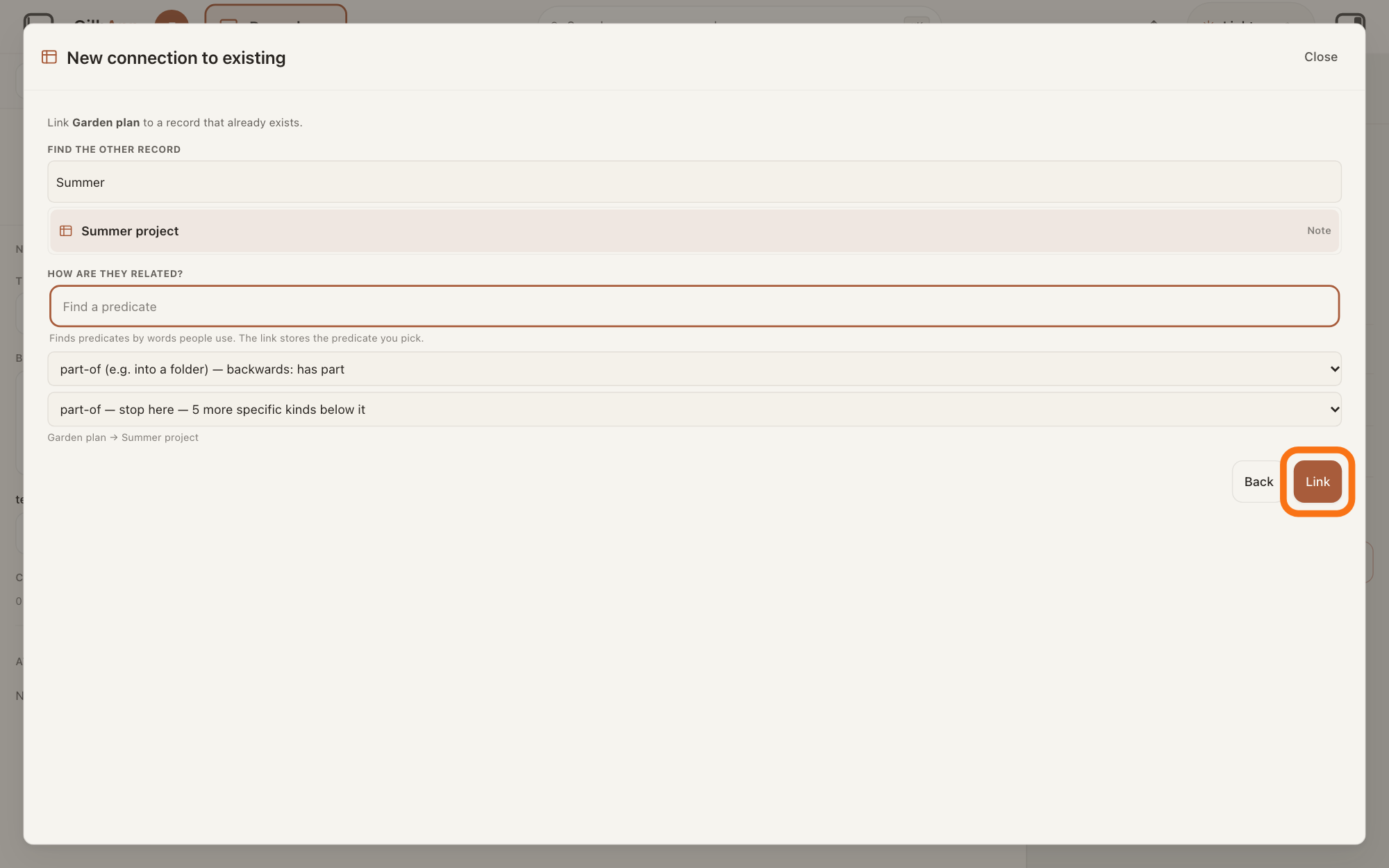
Press Link.
Press Link at the bottom right. GilbApp writes the link and the panel closes.
Show as text
Under the lists, the line reads "Garden plan → Summer project". At the bottom right, beside "Back", the outlined button reads "Link". Click it.
More about this
Link stays grey until you have selected a record and a relation; its hover text says which is missing. It reads Linking… while it works. If the link could not be written, the panel stays open and says No link was written — and why; Linked — the view could not refresh; reload to see the edge. means it was written. Back returns to the five cards. Afterwards the record's card lists the other record under RELATIONS when you press ▸ DETAILS at its foot, and Graph draws the link as a line.
Deeper
Also asked:
How do I remove a link between two records? Open Graph, click the line, and press End relation in the right pane. The two records stay.
How do I connect two records, such as a person and their company? Link them: select the person in Records, press + New, choose the card that starts with Link, select the company, choose how they are related and press Link. Both must be in the vault open on screen.
What is a relation between records? A relation is a named link that says how two records are related, such as part-of or depends-on. The list comes from GilbVeda, the shared list of terms.
I made a record or a link, but I cannot see it. Do I have to reload? If GilbApp says the view could not refresh; reload to see the edge, it was saved: reload the page. If it says it may still land, look for it in the list before you try again.
To link a record you have not made yet, choose the first card in step 4 instead, Create a record and link it to your record. The panel New connected record shows your record under ALREADY HERE and the new one beside it, with an arrow from FROM to TO; Switch direction turns the arrow round. Type the new record's name in the box that shows Name this and its type, choose its type, and under HOW RELATED choose the relation; until you choose, it is connected-to, or associated-with when both records are people or organisations. Link to with your record's name is ticked; untick it to make the record without the link. Create in: names the vault the new record goes in. Create + link makes the record and the link together.
In the graph you can also link two records by drawing a line from one to the other; the answer on seeing how records are connected (the graph) shows it.
To change or end a link, open Graph and click its line. The right pane, which the square button at the far right of the top bar shows or hides, shows CONNECTION and the relation's name; for a relation with a direction, it also shows how it reads each way. Choose another relation under HOW ARE THEY RELATED? and press Save: GilbApp writes a new link, ends the old one and says Join kind changed. The previous claim is ended; this URI is the new one. (a URI is an address). End relation removes the link; its hover text says Remove this connection. The two nodes stay., a node being a record drawn in the graph. HOW MUCH (VALUE + STATUS) ▸ opens boxes to measure the link, such as how close two people are: TAG, UNIT, RATE, CONTEXT, a Status with Record Status, Tolerable and Goal; you need none of them. Add a point in time adds a WHEN and a WHERE under WHEN AND WHERE, and Remove point takes one away. Save keeps them, and the pane says Saved on this connection (Value + Status / when / where).
The list in step 5 holds only records of the vault open on screen. Plan cards also link through lines of their own, such as Solution of Function; the answer on reusing a Solution or a Constraint shows one.
If GilbApp cannot read the relations from GilbVeda, it says Could not read the live relation catalog. No join can be written until it is. If it uses the list it read before, it says Showing a cached catalog — the live ontology could not be re-asked.
This answer is written for a computer screen.
Source: GilbApp af0f04ee838a4d55887d2ff1f72edd49a4ff7ca0 (https://gilb.com/app/version.json read 2026-11-09, buildTime 2026-11-09.522Z, dirty false); code from the unpack (no checkout). Step 1: gilbAppMenuRows.ts:117-123 (Records, People, places, things and notes, as grid, graph or cards.); AppShell.tsx:496 (readVault = selectedVault ?? landingVault); RecordsCenter.tsx:86-89 (Grid, Graph, Both, Card). Step 2: RegisterScopedSearch.tsx:71-75; RecordGrid.tsx:959-1003 and workingSetFacets.ts:88-102 (local substring over rows already read), Base 4d008a55 src/routes/search.ts:66 (default `text` = whole-token BM25), hence a word of (run 10i ruling (b)); RecordDetail.tsx:281 and RightRegion.tsx:954 (Card -> pane headed Actions); RecordsCenter.tsx:98-119 (Show all records after the view tabs, only in Card or folder view; + New ml-auto, NewRecordButton.tsx:75); RecordGrid.tsx:1196-1206 (workingSetActive = a Vault or Type choice); recordsView.ts:76-84 (row click in Grid -> Card); RecordsCenter.tsx:106-125 (Show all records beside + New); WorkingSetFacetBar.tsx:131-145, :290 (Vault, Type chips, CSS capitals); Step 3: NewRecordButton.tsx:51-57, :76-90 (+ New, grey with reason); ConnectedCreateDialog.tsx:1729-1751 (heading New, Close), :577 (chooser first outside Plan); CreateModeChooser.tsx:90 (Select a record first.), :104-189 (five cards, order with a selection). Step 4: CreateModeChooser.tsx:124-134; ConnectedCreateDialog.tsx:1732-1733 (New connection to existing). Step 5: ConnectExistingPanel.tsx:101-102 (list and search of the OPEN vault only), :176-184 (source asked for at ITS vault), :101-168 (open vault's list + search, label or id filter, 20 cap, source left out, same-name id tail), :238-310 (Find the other record CSS capitals, Search this vault…, type label right), :38-54 (empty sentences). Step 6: ConnectExistingPanel.tsx:312-329 (How are they related? CSS capitals; picker default layout select; → line); RelationHowRelatedPicker.tsx:47-56 (hints), :96-101 (backwards), :108-136 (Find a predicate and caption), :150-166 (No predicate matches), :683-760 (select levels, Choose a kind…, — stop here with count); live roots read by public read https://veda.gilb.com/base/vocab?status=all&linkPlane=user 2026-11-10 (part-of, depends-on, connected-to among the roots); linkPlaneCatalog.ts:343-375. Step 7: ConnectExistingPanel.tsx:170-221 (commit, notices), :341-360 (Back, Link, titles, Linking…); ConnectedCreateDialog.tsx:1807-1816 (onDone closes, Back = chooser); RecordDetail.tsx:2769 (Details closed), :2813 (▸ Details, CSS capitals), :2900-2930 (Relations, partners listed). Deeper 1: CreateModeChooser.tsx:105-121; ConnectedCreateDialog.tsx:398-401 (default t:ConnectedTo), :694-698 (party default t:AssociatedWith; partyTie.ts:1-12), :1852-1960 (stage, Link to toggle, Off — the record will be created on its own.), :2053 (Create in:), :2091 (Create + link), :2181-2300 (Switch direction, How related, Name this <type>), :2341-2344 (Already here, From/To). Deeper 2: RecordGraph.tsx:1896-1970 (mintLink, onConnect), :2011-2019 (onConnectEnd -> openConnectedCreate), :1946 (Link saved · <name>.). Deeper 3: RecordGraph.tsx:1841-1866 (line click selects the relation); AppShell.tsx:1126-1146; RightRegion.tsx:814-815; RelationEditPane.tsx:521-545 (Connection, both readings), :548-560 (picker), :590-600 (Add a point in time), :600-720 (How much (Value + Status), fields, Record Status), :724-775 (When and where, Remove point), :782-800 (End relation title, Save), :379-399 (retype: new link written, then the old ended), :397, :416 (notices). Deeper 5: RelationHowRelatedPicker.tsx:351, :656. GilbVeda public read 2026-11-10: t:Relation (a predicate that links things), t:VaultRecord, t:ConnectedTo, t:PartOf.
Checked against GilbApp d529620.