
How do I set an organisation's parent and number?
Short answer
In Stakeholders, search and select the organisation, press + Add Information, choose Part of and the parent; again with Organization number, type it, press Add.
Before you start
You need to be signed in to GilbApp on a computer, and the organisation and its parent must already have cards in Stakeholders, in the same vault, one you can write to; the answer on adding a stakeholder (organisation, system, other) shows how to make them. The pictures show a made-up person on a test site; your screen shows your own name and address.
Words used here (6)
- Organization number
- Organization number is the official number a register gives an organisation, such as its company number; on your card it can be any text.
- GilbApp
- GilbApp is the app, opened in a web browser at https://gilb.com/app, where you open, fill and share your vaults.
- record
- A record is one piece of data with its own address, such as a person, a place, a thing or a note.
- field
- A field is one named fact on a record, such as its title or a due date; its name comes from GilbVeda.
- Member of
- Member of names the groups, companies or teams a person belongs to, each a card in the same vault.
- parent organisation
- A parent organisation is the one organisation directly above another, such as the head office above a branch; the card shows it under Part of.
Steps
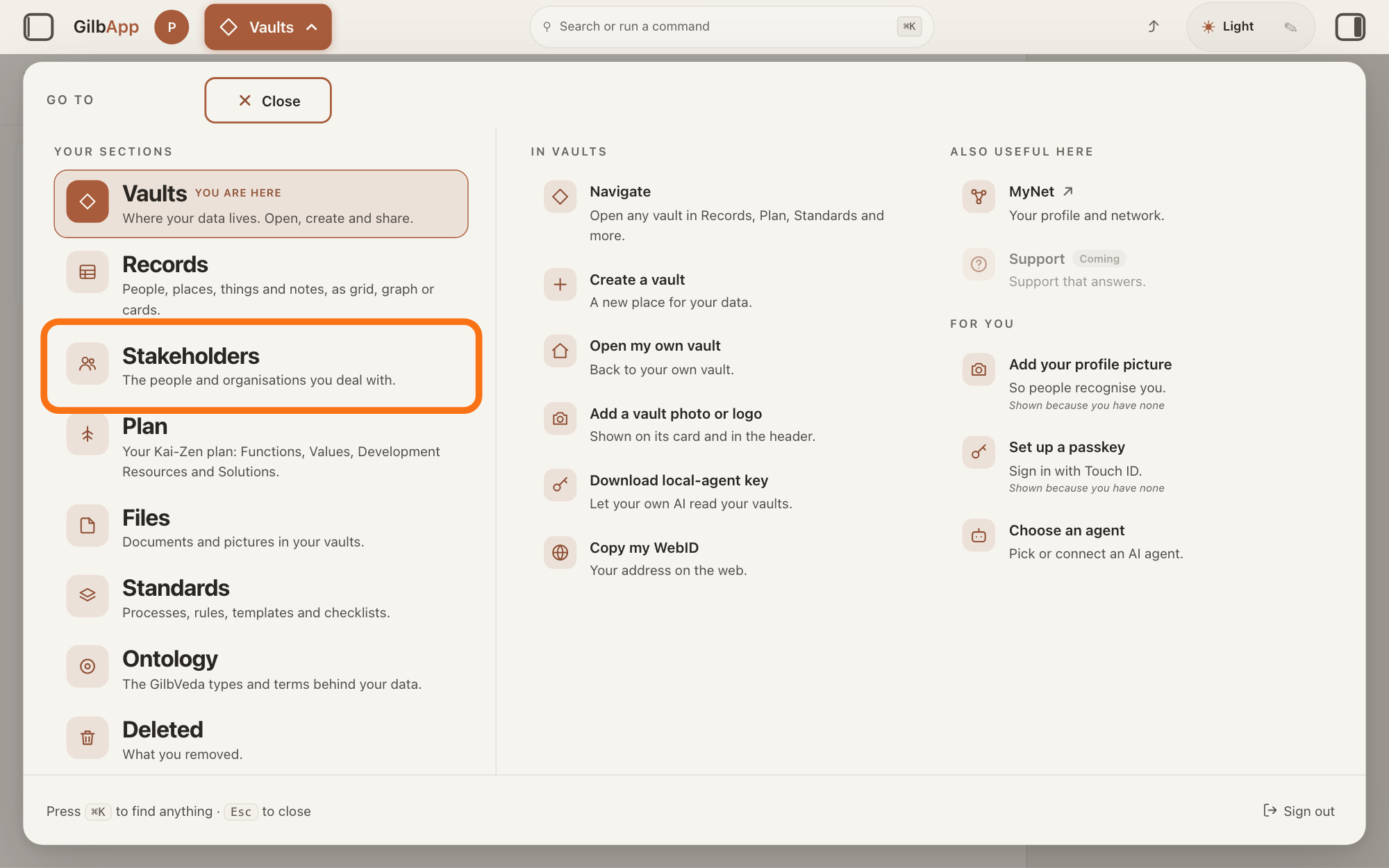
Press Main menu at the top left and choose Stakeholders.
Press Main menu, next to your profile picture at the top left, and under YOUR SECTIONS choose Stakeholders. A stakeholder is a person, group or system that cares whether a Value goes up or down.
Show as text
At the top left, press "Main menu" (it shows the name of the section you are in). In the panel headed "GO TO", look under "YOUR SECTIONS" and press "Stakeholders", "The people and organisations you deal with.", outlined in orange.
More about this
The button shows the name of the section you are in, such as Vaults. A panel headed GO TO opens; Stakeholders reads The people and organisations you deal with. You can also press the Stakeholders button on the card of a vault (the place where a person or a group keeps their records) in Vaults. The screen lists your stakeholders and has the views Grid, Graph, Both and Card. The list also holds organisations, systems and groups; the TYPE column says which are Person.
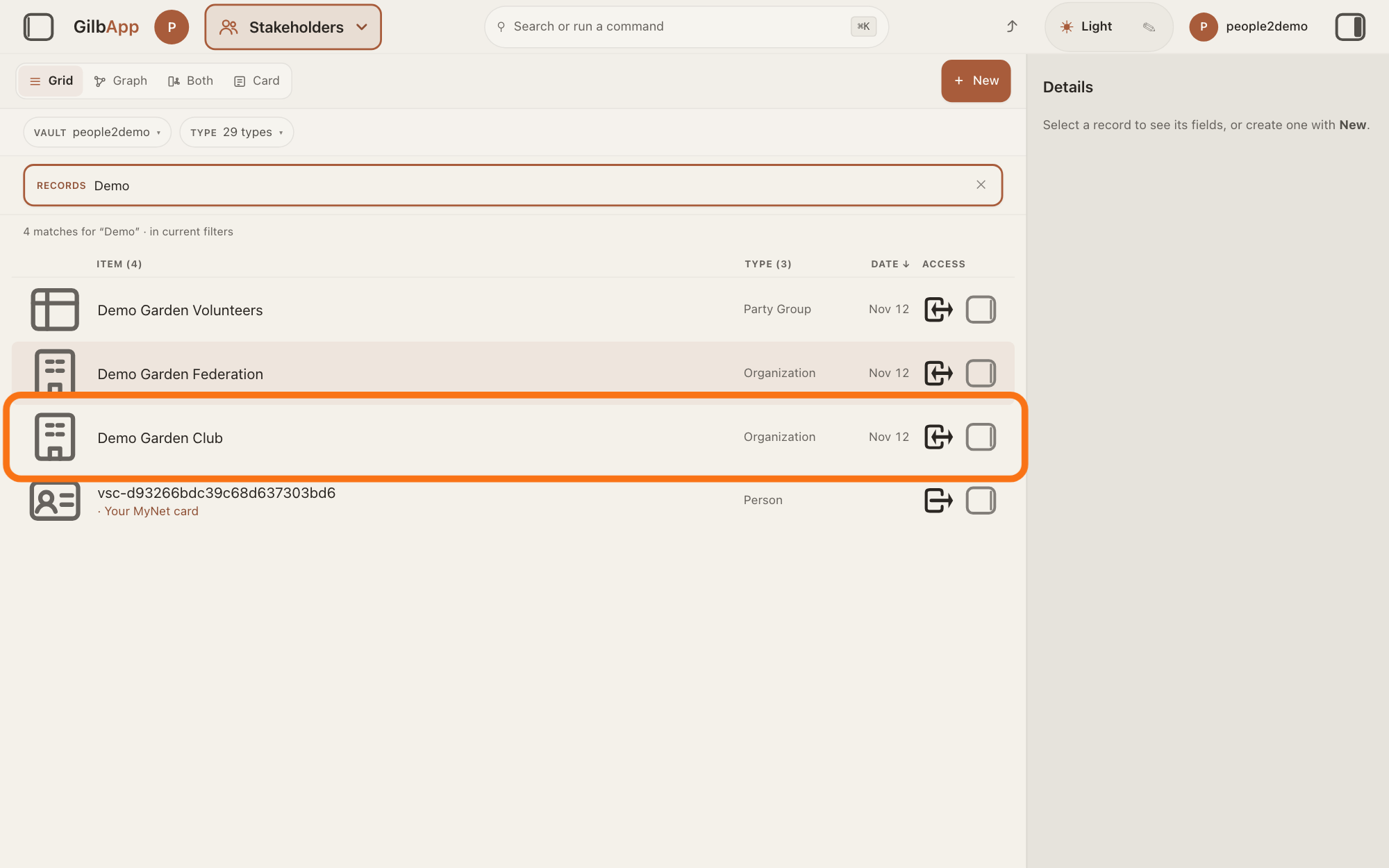
Search and select the organisation in the list.
Type a word of the organisation's name in the search box marked RECORDS above the list, and click the organisation in the list. Its card opens in the middle of the screen, and the right pane, headed Actions, holds what you can do with it.
Show as text
Type a word of the name in the box marked "RECORDS" and press the organisation's row in the list, outlined in orange.
More about this
The box shows Search in current filters…, because the list holds only stakeholders. If you can only read the vault that holds the card, the card has no Edit and no + Add Information, and nothing on it can be changed. You do not need the right pane here.
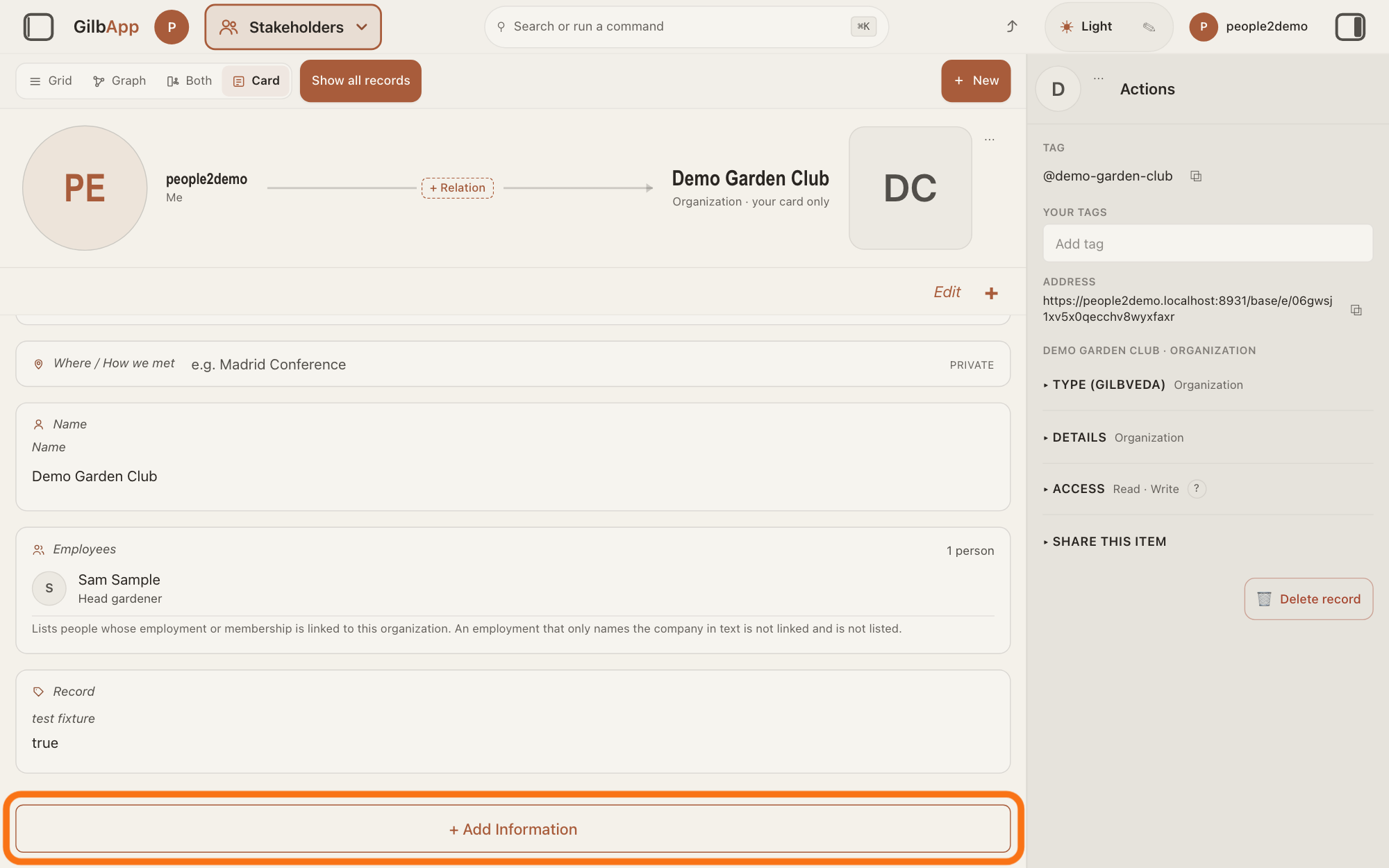
Press + Add Information.
Scroll down to the foot of the organisation's card and press + Add Information. A list headed Add information opens over the whole window.
Show as text
On the organisation's card, scroll to the foot and press the wide button "+ Add Information", outlined in orange.
More about this
The list holds only the kinds of information the card does not show yet. The + beside Edit at the top right of the card opens the same list; its Search box narrows the list, and Cancel closes it.
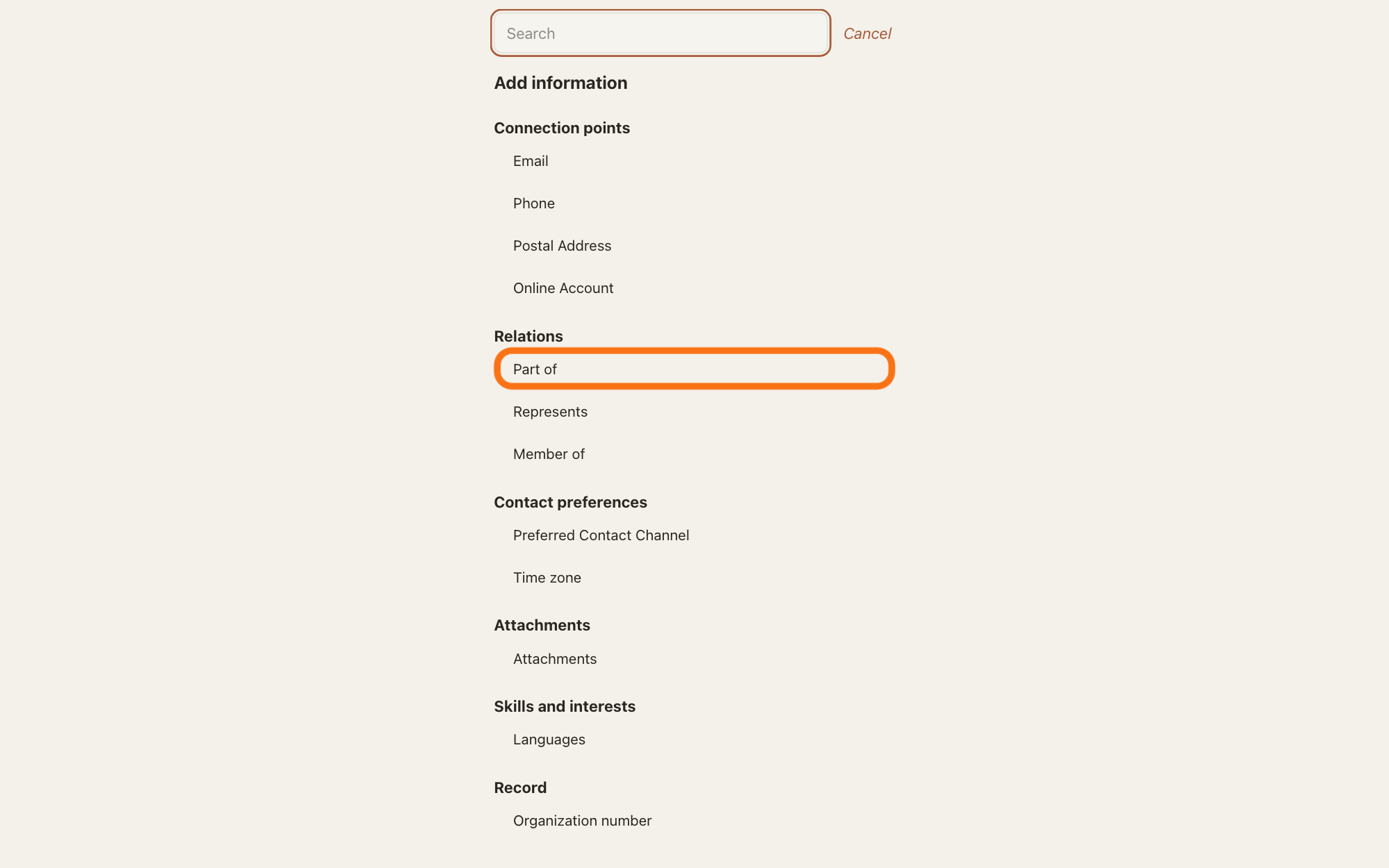
Under Relations, choose Part of.
In the list, under Relations, choose Part of. The card shows a frame headed Part of, in edit mode, with a box that shows Search organizations and the cursor in it.
Show as text
In the list headed "Add information", look under "Relations" and press "Part of", outlined in orange. "Organization number" is under "Record", near the foot.
More about this
Under the title it says The organization this one belongs to, up to the head office. In edit mode Edit at the top right reads Done, and the card says Editing. Changes save as you leave a field. Member of and Represents under the same heading are other links; the answer on adding more information to a card explains them. If Part of is not in the list, the card has a parent already: press Edit, then Change the parent organization under Part of.
Choose the parent organisation in the list.
Click the parent in the list under the box; to narrow a long list, type a word of its name first. GilbApp saves it at once, and Part of shows ↑ and the parent's name, with head office beside the top one.
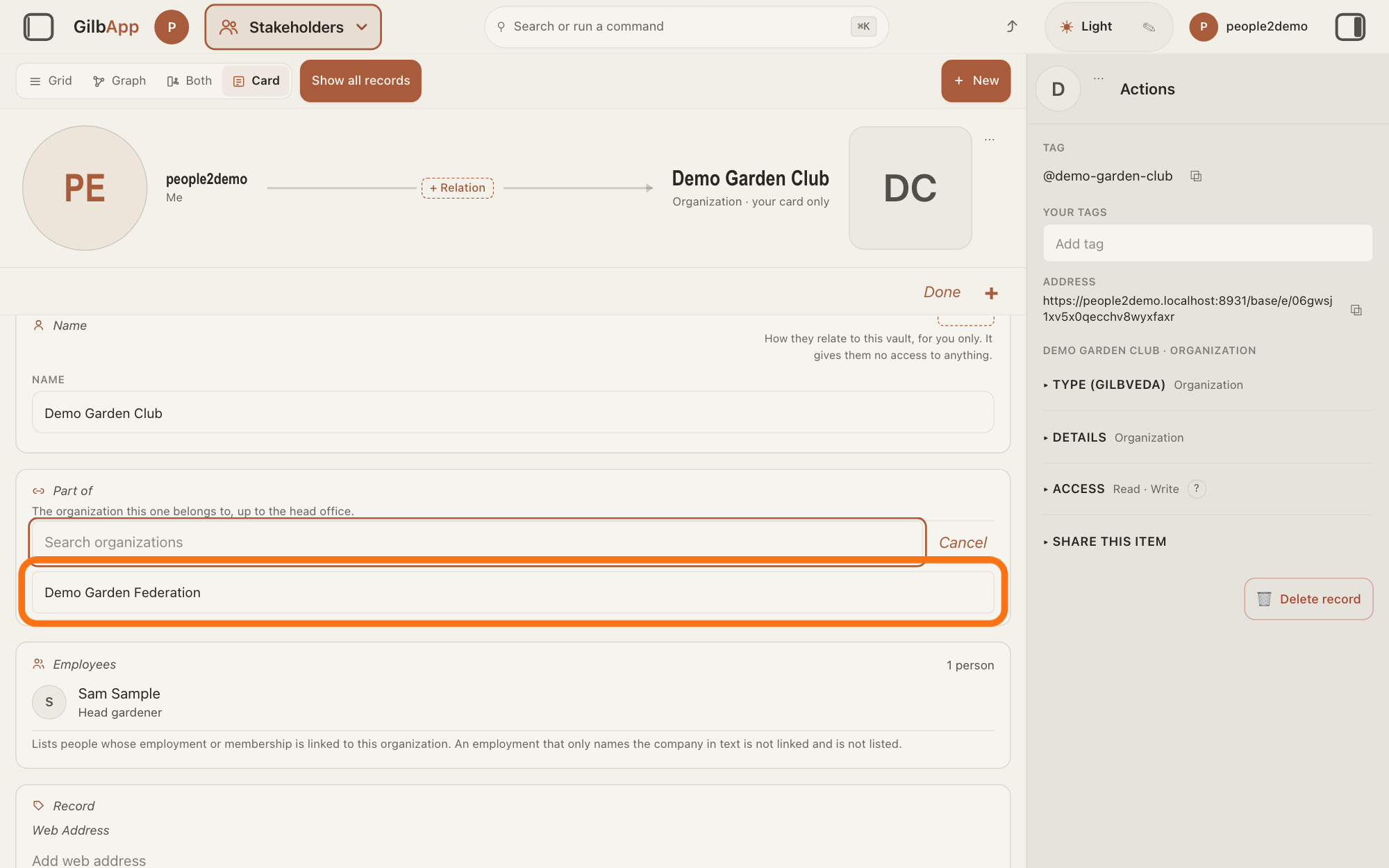
Show as text
The frame "Part of", "The organization this one belongs to, up to the head office.", opens with the box "Search organizations". Press the parent in the list under the box, outlined in orange.
More about this
The list holds the organisations kept in the same vault as this card, but not this one. Searching organizations… shows while it looks; No organization record matches. means none. Cancel or Escape closes the box and changes nothing. A parent that would make a loop is refused, such as That would make a loop: it is already below this organization. The chain goes up to the head office; each name opens that card, and Not visible: you may not read the next level up. stands where you may not read it. The parent's card lists this one under Units. In edit mode the red round minus sign at the left of the parent removes it.
Press + Add Information again and choose Organization number.
Scroll down, press + Add Information, and under Record choose Organization number. A box that shows Number, in any form opens with the cursor in it.
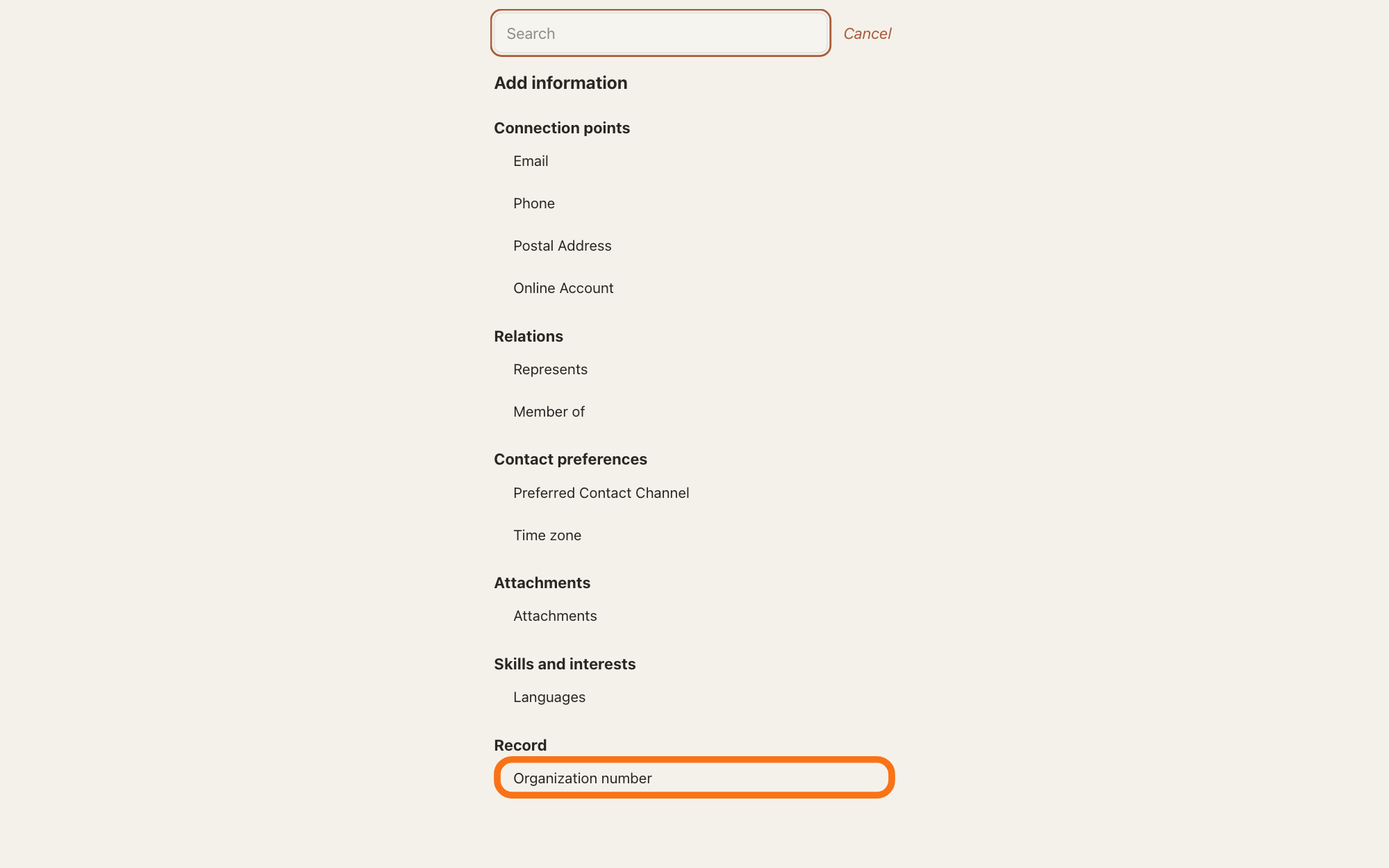
Show as text
"Part of" is no longer listed under "Relations". Under the heading "Record", at the foot of the list, press "Organization number", outlined in orange.
More about this
Under the title it says "Type the number as it is written, from any country. A register is optional: it checks the number and links to its page." A register is the official list that gives organisations their numbers in one country or sector. If the card already shows a number, press Edit, then Add organization number to add another.
Type the number and press Add.
Type the number as it is written, such as 123456789, and press Add or Return. It is saved and shows under Organization number.
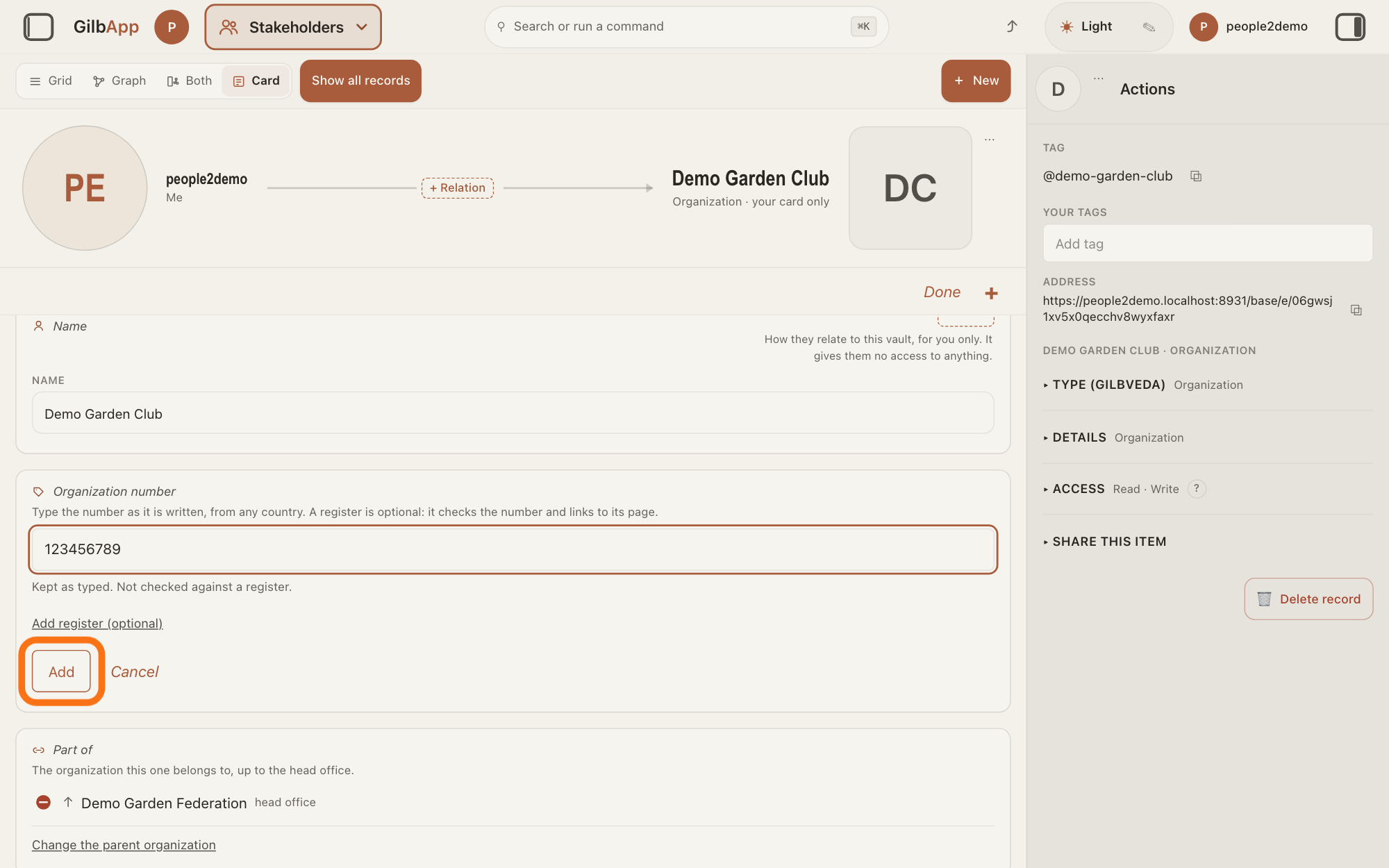
Show as text
The frame "Organization number" opens. Type the number in the box; the line under it says "Kept as typed. Not checked against a register.". Press "Add", outlined in orange; "Cancel" is beside it.
More about this
While you type, it says Kept as typed. Not checked against a register. Add stays greyed while the box is empty; it takes one line of up to 120 characters. Add register (optional) opens a box that shows Search registers by name or country: with a register chosen, GilbApp checks the number by that register's rule, and where the register has a page the number opens it in a new tab; Remove register takes it off. Cancel adds nothing. Under the number it says Added by you. Everyone who may read the vault sees it; Make private to me only keeps it for you alone, and the card then says Only you see this.
Deeper
The parent and the number are kept on your card of the organisation, in the vault that holds it. Setting a parent changes this card only, never the parent's card. Each organisation has one parent; a parent can have many units.
An organisation can also keep its own card in its own vault, but GilbApp today has no screen for it, and GilbPlatform does not keep a parent or a number on such a card yet.
You can add a number only if you have a vault of your own; without one the card does not offer Organization number.
This answer is written for a computer screen.
Source: GilbApp af0f04ee838a4d55887d2ff1f72edd49a4ff7ca0 (https://gilb.com/app/version.json read 2026-11-10, dirty false). the private-switch sentence. records/orgCard/OrgCardGroups.tsx:1-45 (an organisation's own groups: Languages, Organization number, Part of, Units, Employees); RecordDetail.tsx:702-712 (an organisation card is found by the logo term), :2028; CardGroup.tsx:20-33 (chooser headings: relation-… under Relations, org-number under Record), :36-107 (a pick presses the group's data-card-add control), :170-180 (an empty group hidden unless opened); records/orgCard/OrgHierarchySections.tsx:1-8 (the parent is written on this record only; loops refused), :30-35 (chain end words), :38-70 (one parent, a scalar; a racing loop is put back), :120-128 (Part of, helper The organization this one belongs to, up to the head office.), :136-152 (↑, name opens, Not visible, head office, red minus in edit mode), :164-182 (Set the parent organization with data-card-add, Change the parent organization, picker label Parent organization, the record itself excluded), :200-264 (Units, Organizations that are directly part of this one.); lib/mynet/org/orgHierarchy.ts:16 (20 levels), :88-100 (refusal sentences); records/orgCard/OrgRecordPicker.tsx:1-4 (records of the vault that holds this card), :26-48 (Search organizations, Searching organizations…, No organization record matches., searchOnMount), :151-167 (Escape and Cancel); lib/base/orgCard/orgRecords.ts:86-143 (empty box lists the vault's organisation records; typed text a prefix search; same vault only); records/orgCard/OrgNumberSection.tsx:1-15 (free text by default; a register optional; a held number, no network find key), :43-50 (Search registers by name or country), :111-127 (verdict words), :150-175 (presentation: link to the register's page in a new tab, Not checked against a register), :195-215 (Remove register, Add register (optional)), :275-282 (hidden without a vault of your own; title, helper), :312-398 (Add organization number with data-card-add, box placeholder Number, in any form, Enter, Add disabled until valid, Cancel); lib/base/orgCard/heldOrgNumber.ts:1-22 (one held claim per number in the vault that holds the record; no a:visibilityTier, no a:claimSubject: shared with the vault by default), :92 (FREE_TEXT_MAX 120), :207-212 (refusal words); HeldVisibilitySwitch.tsx:1-49; AddedByLine.tsx:1-10, :42; lib/mynet/heldnote/heldDetailMark.ts:1-12. GilbPlatform 4d008a55: src/authz/audience-tier.ts:21-27 (deny only where a tier row exists and the reader is outside it; an untiered entity keeps the vault's reach); src/routes/connect-org-field-claims.ts:1-27, :53-56 (an organisation vault's own card fields: Control and Write on that vault, email, phone, social, address only; parent and registration number have no kind yet; write places no rung, so nothing is served), src/routes/connect-org-field-publication.ts:1-25 (publish is a separate act, public or signed-in, by the Control holder); no GilbApp or MyNet code calls these routes (the code shows: 0). GilbVeda public read 2026-11-10: t:ParentOrganization (a:parentOrganization, single, acyclic, written only on the child's record, the parent's record never changed, the units below read as the records that name it; field of t:Organization), t:RegistrationNumber (free text when no register; a register checks it and may link its page), t:OrganizationRegister.
Checked against GilbApp d529620.