
← Back to How do I set an organisation's parent and number?
How do I add more information to a card?
Short answer
In Stakeholders, search and select the person, press + Add Information, choose the kind, then type it, or search and select it.
Before you start
You need to be signed in to GilbApp on a computer, with the person's card in a vault you can write to, such as your own vault; for the Member of example, the group needs its own card in the same vault, as a group; an organisation's card is not offered there. The pictures show a made-up person on a test site; your screen shows your own name and address.
Words used here (7)
- GilbApp
- GilbApp is the app, opened in a web browser at https://gilb.com/app, where you open, fill and share your vaults.
- Member of
- Member of names the groups, companies or teams a person belongs to, each a card in the same vault.
- record
- A record is one piece of data with its own address, such as a person, a place, a thing or a note.
- online card
- An online card is the card a person keeps about themselves on GilbPlatform; others see only what the person shares with them.
- GilbPlatform
- GilbPlatform is the service that keeps people's and organisations' data in vaults, each at its own web address.
- Skill
- A Skill is something a person can do, such as nursing or selling, named from a shared catalogue; it is not a diploma.
- field
- A field is one named fact on a record, such as its title or a due date; its name comes from GilbVeda.
Steps
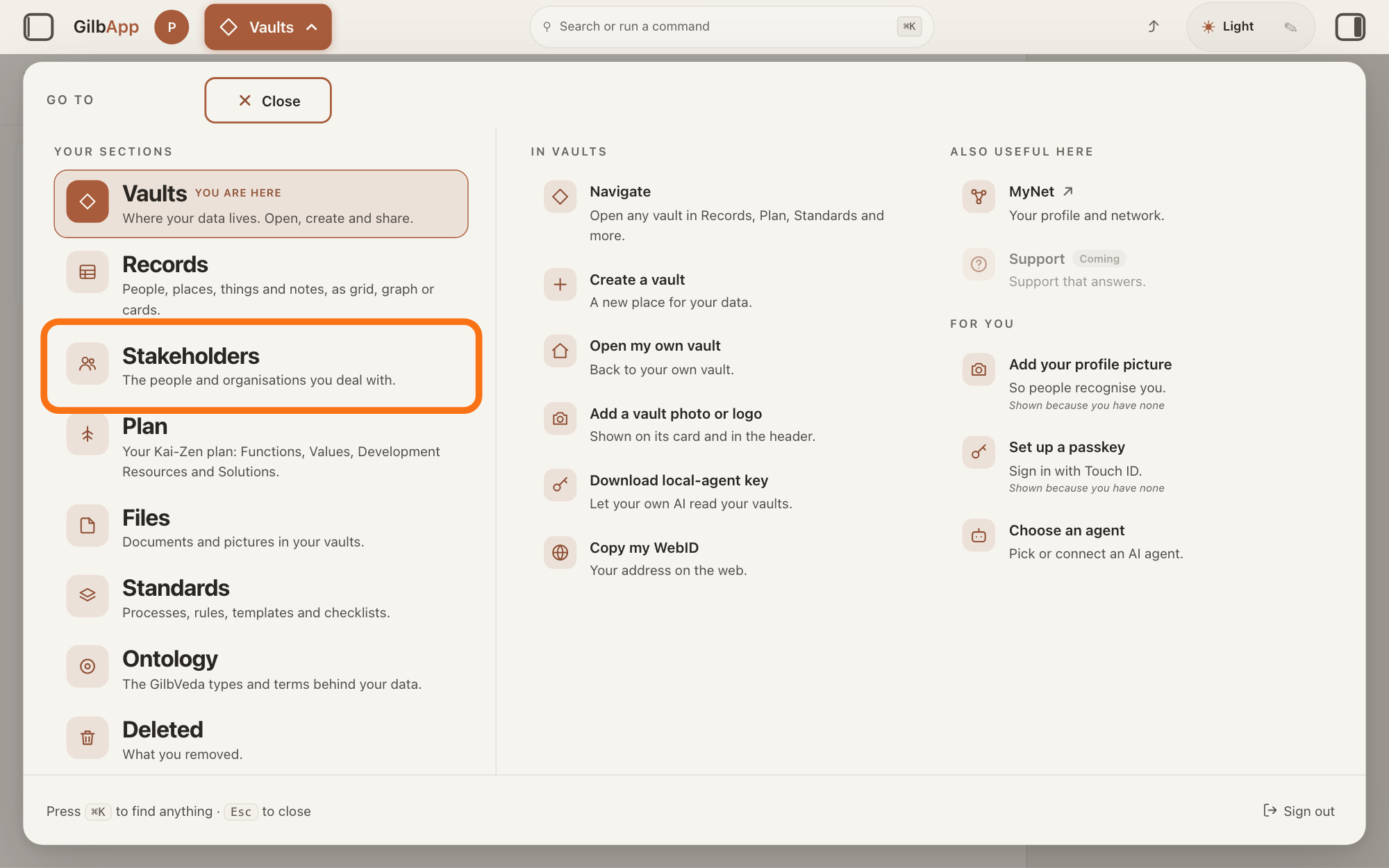
Press Main menu at the top left and choose Stakeholders.
Press Main menu, next to your profile picture at the top left, and under YOUR SECTIONS choose Stakeholders. A stakeholder is a person, group or system that cares whether a Value goes up or down.
Show as text
At the top left, press "Main menu" (it shows the name of the section you are in). In the panel headed "GO TO", look under "YOUR SECTIONS" and press "Stakeholders", "The people and organisations you deal with.", outlined in orange.
More about this
The button shows the name of the section you are in, such as Vaults. A panel headed GO TO opens; Stakeholders reads The people and organisations you deal with. You can also press the Stakeholders button on the card of a vault (the place where a person or a group keeps their records) in Vaults. The screen lists your stakeholders and has the views Grid, Graph, Both and Card. The list also holds organisations, systems and groups; the TYPE column says which are Person.
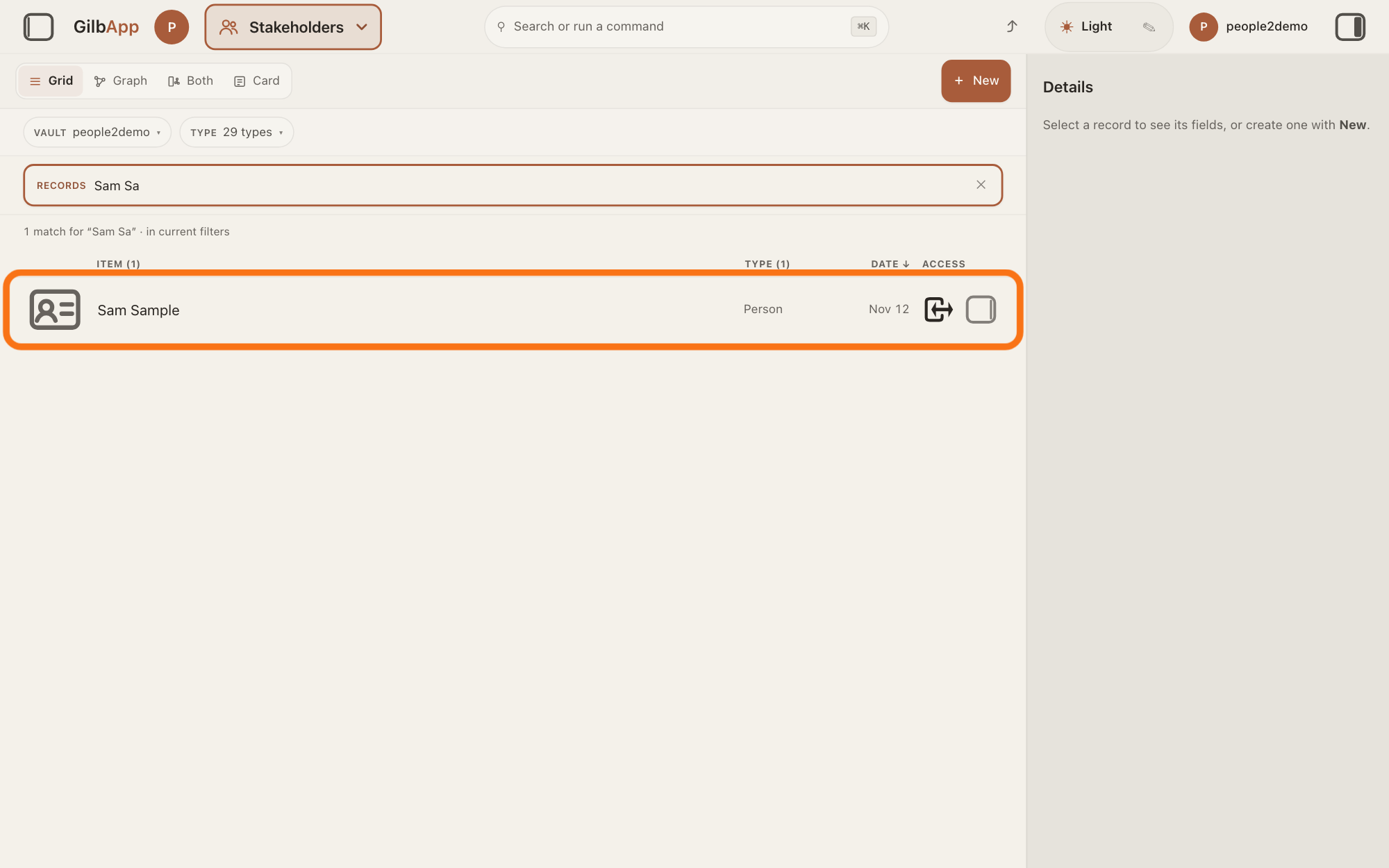
Search and select the person in the list.
Type a word of the person's name in the search box marked RECORDS above the list, and click the person in the list. The person's card opens in the middle of the screen, and the right pane, headed Actions, holds what you can do with it.
Show as text
In the box marked "RECORDS" above the list, type the person's name or its first letters until the line under the box reads "1 match" and only their row is left. Press that row, outlined in orange, to open their card.
More about this
The box shows Search in current filters…, because the list holds only stakeholders; the answer on avoiding adding the same person twice shows more about the search. GilbApp shows only the kinds of information the card already holds; a kind with nothing in it is not drawn. If you can only read the vault that holds the card, the card has no Edit and no + Add Information, and nothing on it can be changed. You do not need the right pane here.
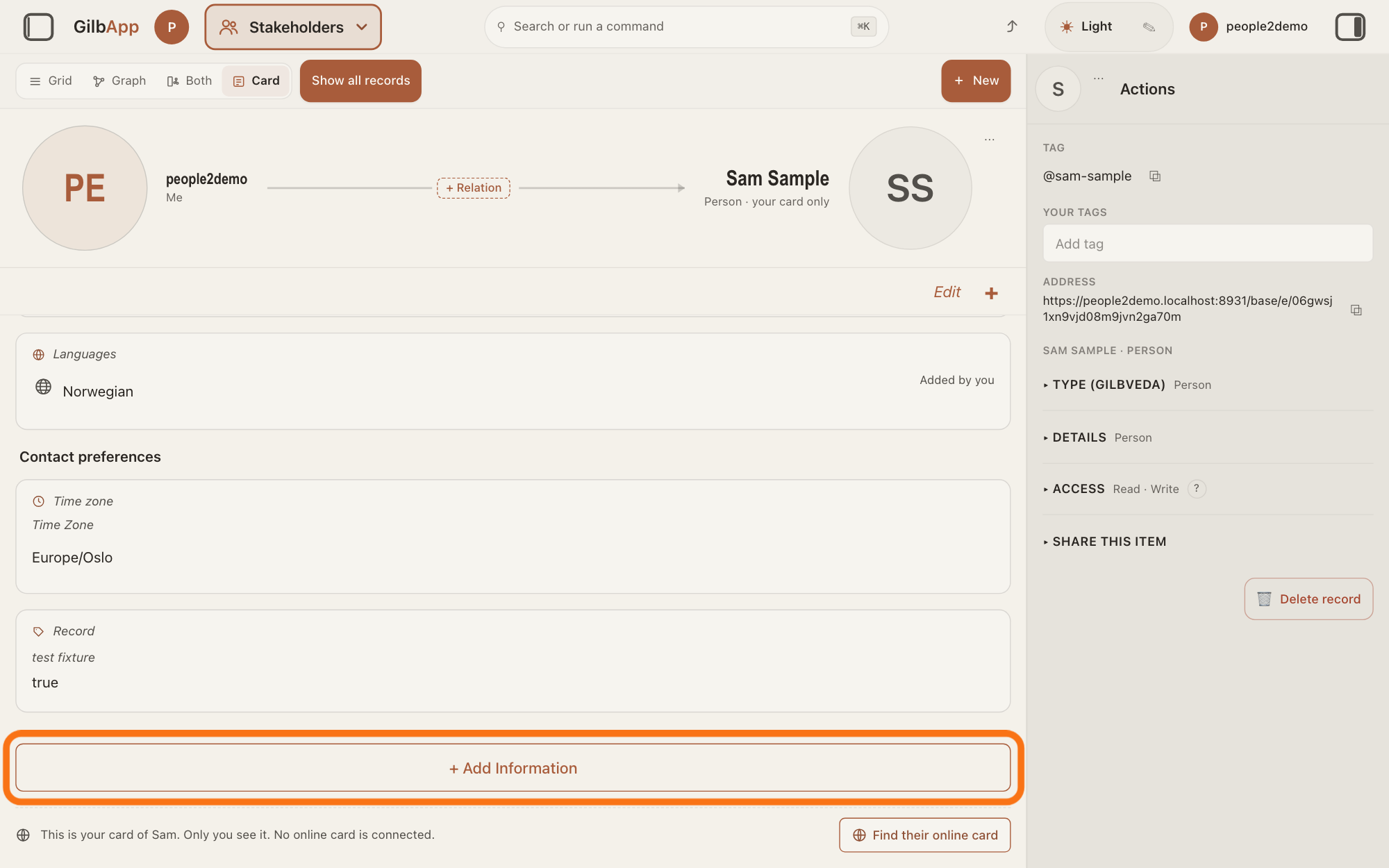
Press + Add Information.
Scroll down to the foot of the person's card and press + Add Information. A list headed Add information opens over the whole window.
Show as text
The person's card opens in the middle. Scroll to the foot of the card and press the wide button "+ Add Information", outlined in orange. Under it, a line says the card is yours only, with "Find their online card" at its right.
More about this
The list holds only the kinds of information the card does not show yet. The + beside Edit at the top right of the card opens the same list. + Add Information and the + are there only if you can write to the vault that holds the card. Below the button, a card not yet connected to the person's own online card, the card a person keeps about themselves on GilbPlatform, has Find their online card; you do not need it here.
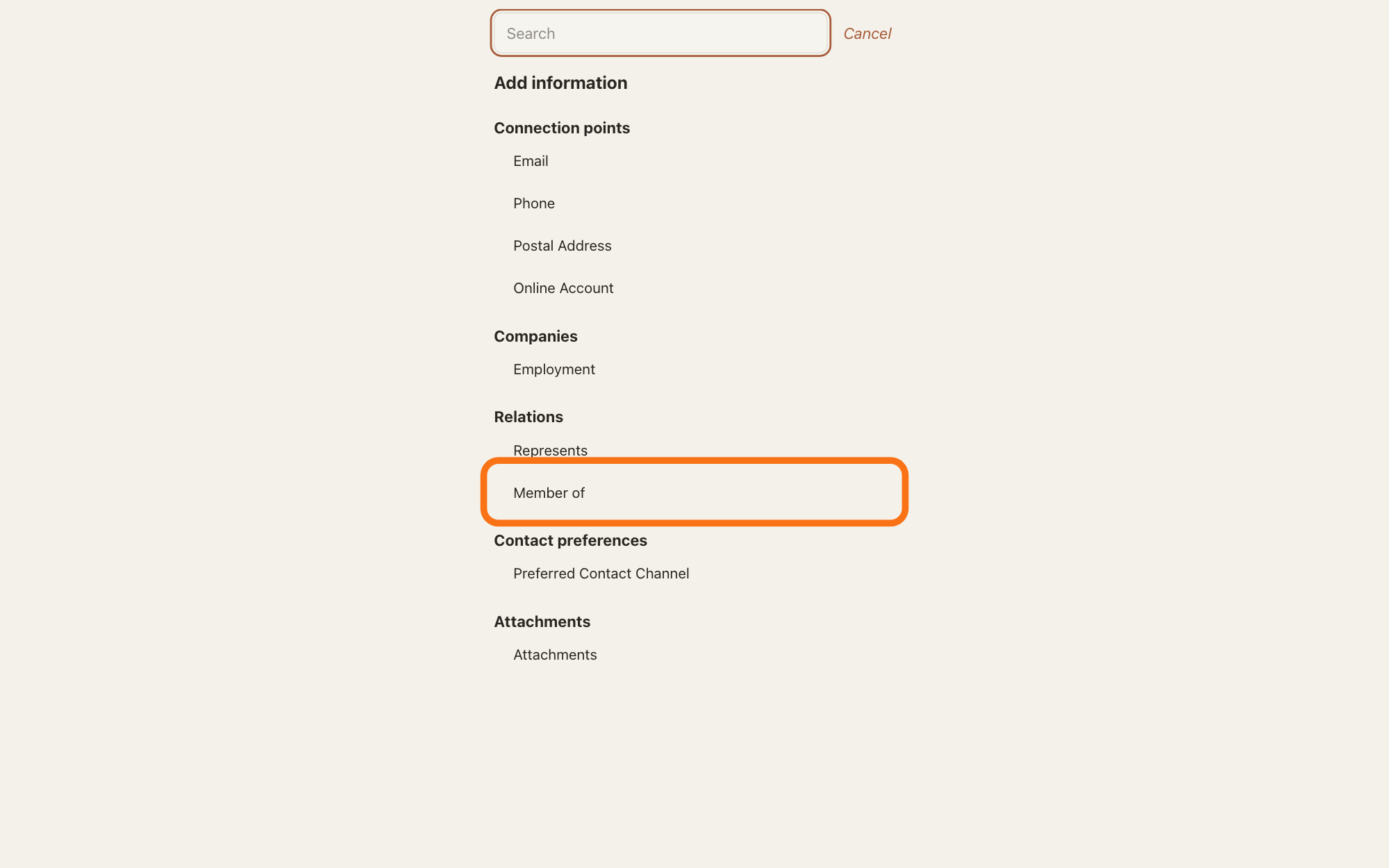
Choose the kind of information you want to add.
In the list, choose the kind of information you want to add, such as Member of under Relations; to narrow a long list, type a word in Search at its top first. The card shows a frame for that kind, in edit mode, with the cursor where you start typing.
Show as text
In the list headed "Add information", look under "Relations" and press "Member of", outlined in orange. "Represents" is listed above it.
More about this
The list can hold the headings Name, Connection points, Companies, Skills and interests, Relations, Contact preferences, Attachments, Notes and Record, each with the kinds this card does not show yet. Which kinds a card offers, and their names, come from GilbVeda, the shared list of terms. Nothing matches. means no kind or heading holds the word you typed; Everything this card can hold is already on it. means there is nothing left to add. Cancel closes the list. In edit mode Edit reads Done, and the card says Editing. Changes save as you leave a field.
Under Member of, search and select the record.
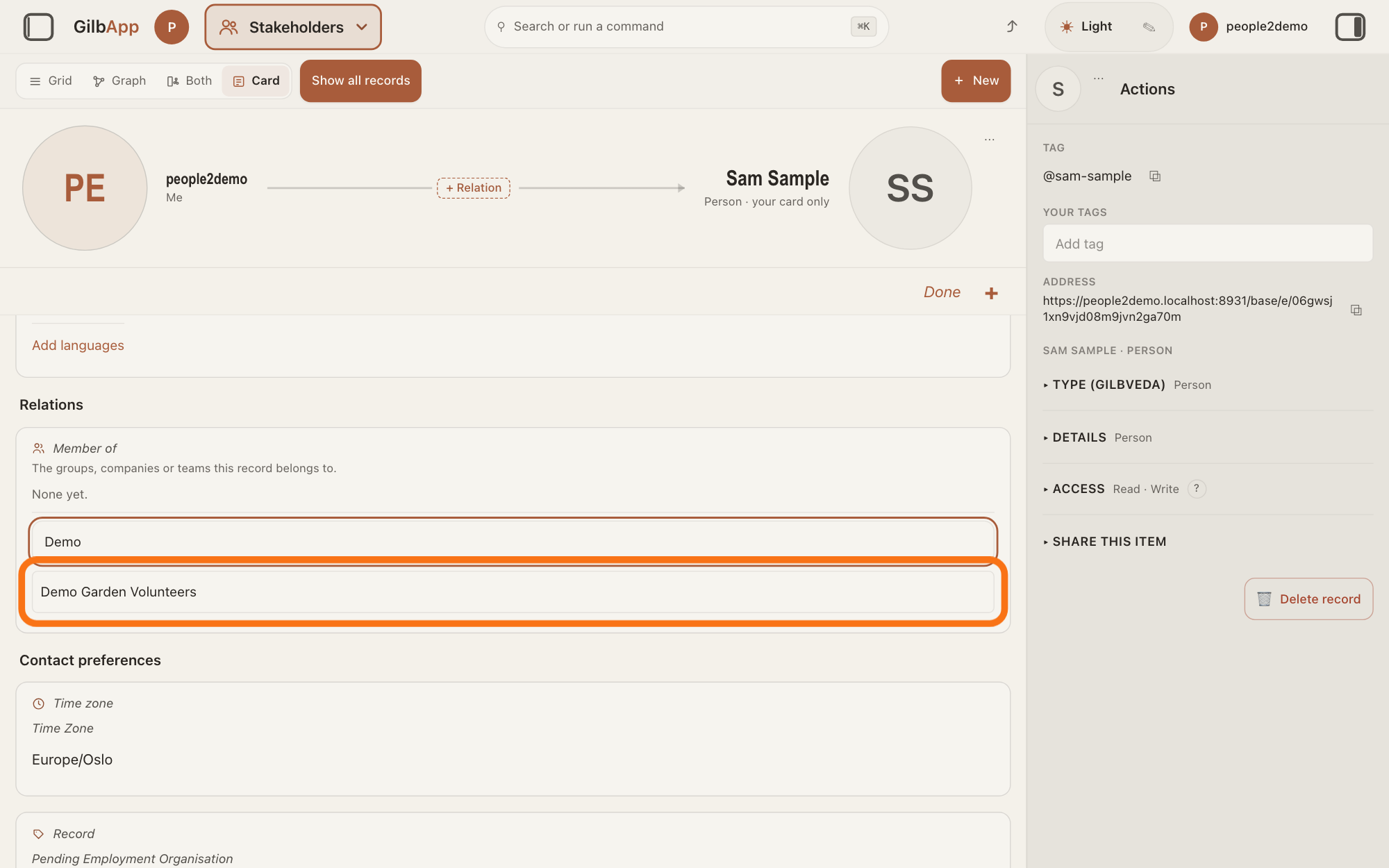
Type a part of the name in the box that shows Add to Member of: find a record by name, and select the record in the list. GilbApp adds the link at once and says Added.
Show as text
The card is in edit mode with the frame "Member of", "The groups, companies or teams this record belongs to.", and "None yet.". Type part of the name in the box, then press the match below it, outlined in orange.
More about this
The frame says The groups, companies or teams this record belongs to., but the list offers only group records, such as Owners or Customers, not an organisation's card; Represents, under the same heading, is for a party the person acts or speaks for. The list holds only records of the same vault that Member of may point at, at most 20 at a time; No record named and what you typed means none matched. Click a link's name to open that record. In edit mode the red round minus sign at the left of a link removes it, and the card says Removed.
When you have finished, press Done.
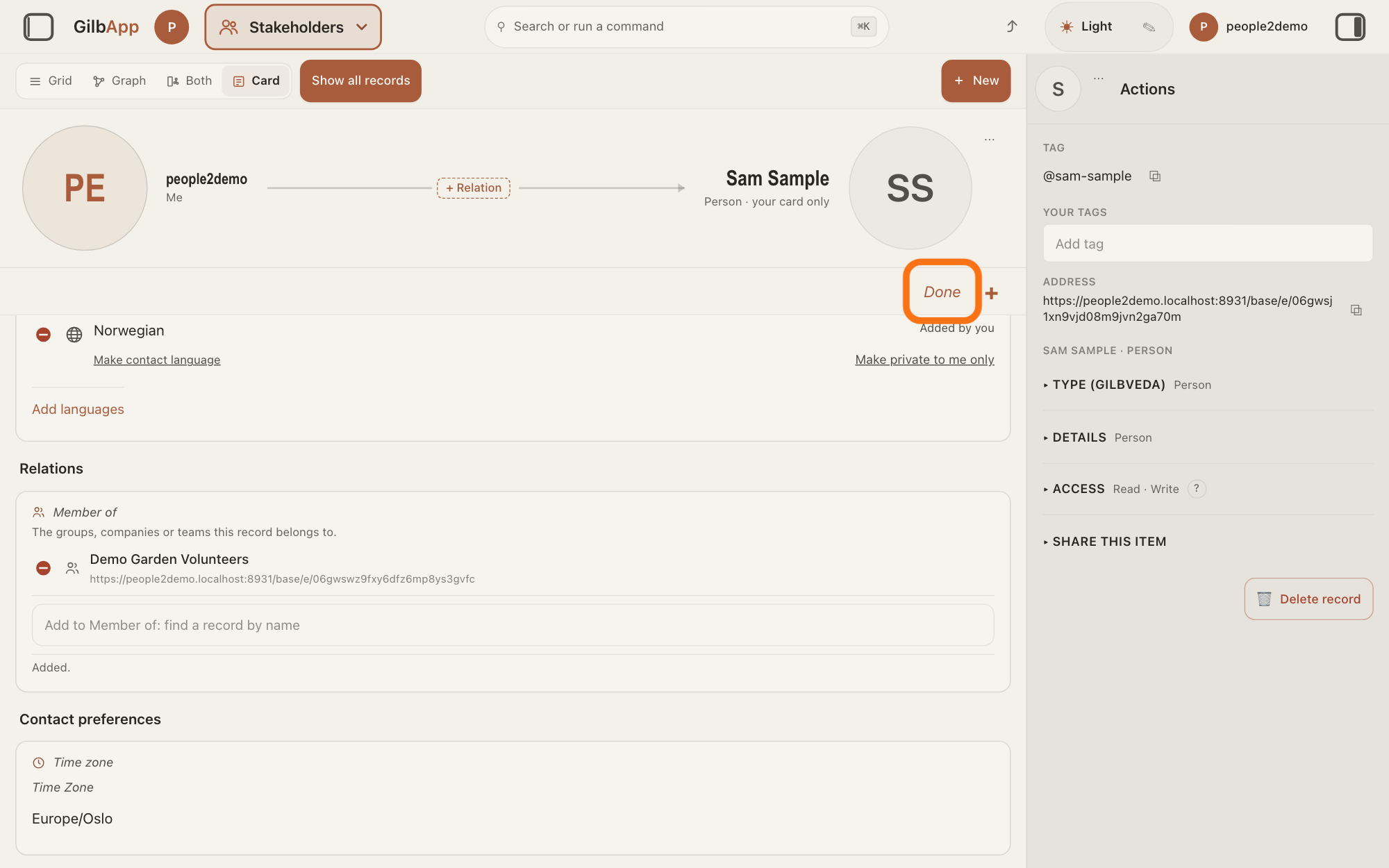
Press Done at the top right of the card. The card goes back to showing what it holds, and a frame you added and left empty is gone again.
Show as text
The group now shows under "Member of" with its address, and "Added." appears under the box. When you have finished, press "Done" at the top right of the card, outlined in orange.
More about this
What you added is already saved; there is no Save button. A click outside the card, Tab out of it, or Escape ends edit mode too. To change something later, click it on the card, or press Edit.
Deeper
Also asked:
How do I add more fields to a record? On a person's card, + Add Information adds more kinds. On any other record, open ▸ ADD FIELD in the right pane, search and select the field, and type its value; the answer How do I edit a record? shows it.
Most kinds have their own answer, such as adding a person's addresses and time zone and adding where a person works. Others cover adding a person's languages, skills and interests and editing a person's e-mails, phones and links. One more covers writing a private note on a card.
A kind you add stays on the card only while it holds something: left empty, it is gone again when edit mode ends. An organisation's card offers kinds of its own, such as its languages and its Employees. Which kinds a card offers come from GilbVeda, the shared list of terms, so they can change without a change to GilbApp.
This answer is written for a computer screen.
Source: GilbApp af0f04ee838a4d55887d2ff1f72edd49a4ff7ca0 (https://gilb.com/app/version.json, built 2026-11-09, read 2026-11-10). Steps 1-3:. records/AddInformation.tsx:1-147 (the chooser lists the card's groups that are not shown and may be added; Search narrows by kind or heading; 'Nothing matches.'; 'Everything this card can hold is already on it.'; Cancel; a choice turns edit mode on and shows that group); CardGroup.tsx:20-33 (the headings), :36-107 (the pick presses the group's add control or focuses its first control), :160-190 (empty groups hidden; an opened group shows); cardMode.tsx:1-15 (edit on a click into a value or Edit; off on Done, Escape, a click outside, Tab out), :120-129 (leaving edit drops a group added and left empty), :243-304; RecordDetail.tsx:2055-2075 (Relations heading with the relation fields), :2076-2099 (Contact preferences), :2102-2114 (Record), :2117-2131 (Attachments, Add Information); records/StakeholderSetFields.tsx:1-15 (a link field is a picker over records of the card's vault, checked again by gilb-stakeholders), :150-262 (title, helper, Added., Removed., red minus, open a link), :264-345 (box 'Add to <name>: find a record by name', Searching this vault…, at most 20, No record named … in this vault that <name> may point at.); lib/base/relationCopy.ts:24-35 ('Represents', 'Member of' and their lines); lib/base/linkTargets.ts:30-65 (membership targets from GilbVeda; part of the name matches); records/orgCard/OrgEmployeesSection.tsx + lib/base/orgCard/orgEmployees.ts:19-20 (Employees lists member-of people); orgCard/OrgCardGroups.tsx (an organisation's own groups). GilbVeda read publicly 2026-11-10: a:memberOf ('MEMBERSHIP IN A NAMED GROUPING: X member-of Y asserts that X BELONGS TO the named grouping Y'), a:actsOnBehalfOf ('REPRESENTATION: X acts-on-behalf-of Y asserts that the party X speaks or acts for the party Y'), both a:fieldOf t:Person.
Checked against GilbApp d529620.