
← Back to What is GilbPlatform, GilbApp and a vault?
How do I work with Jackfruit?
Short answer
Press Main menu, choose Choose an agent, choose Jackfruit - Master Agent of Vaults and Information, type what you want done, and press Send.
Before you start
You need to be signed in to GilbApp on a computer, with your own AI, Claude Code or Grok, connected in the chat, each by its own answer. The pictures show a made-up person on a test site; your screen shows your own name and address.
Words used here (5)
- agent
- An agent is your AI following one written procedure, its standing instructions, for one kind of work.
- Jackfruit
- Jackfruit is the vault agent: it finds, reads, writes and links records in your vaults, and makes new vaults for you.
- GilbApp
- GilbApp is the app, opened in a web browser at https://gilb.com/app, where you open, fill and share your vaults.
- GilbPlatform
- GilbPlatform is the service that keeps people's and organisations' data in vaults, each at its own web address.
- record
- A record is one piece of data with its own address, such as a person, a place, a thing or a note.
Steps
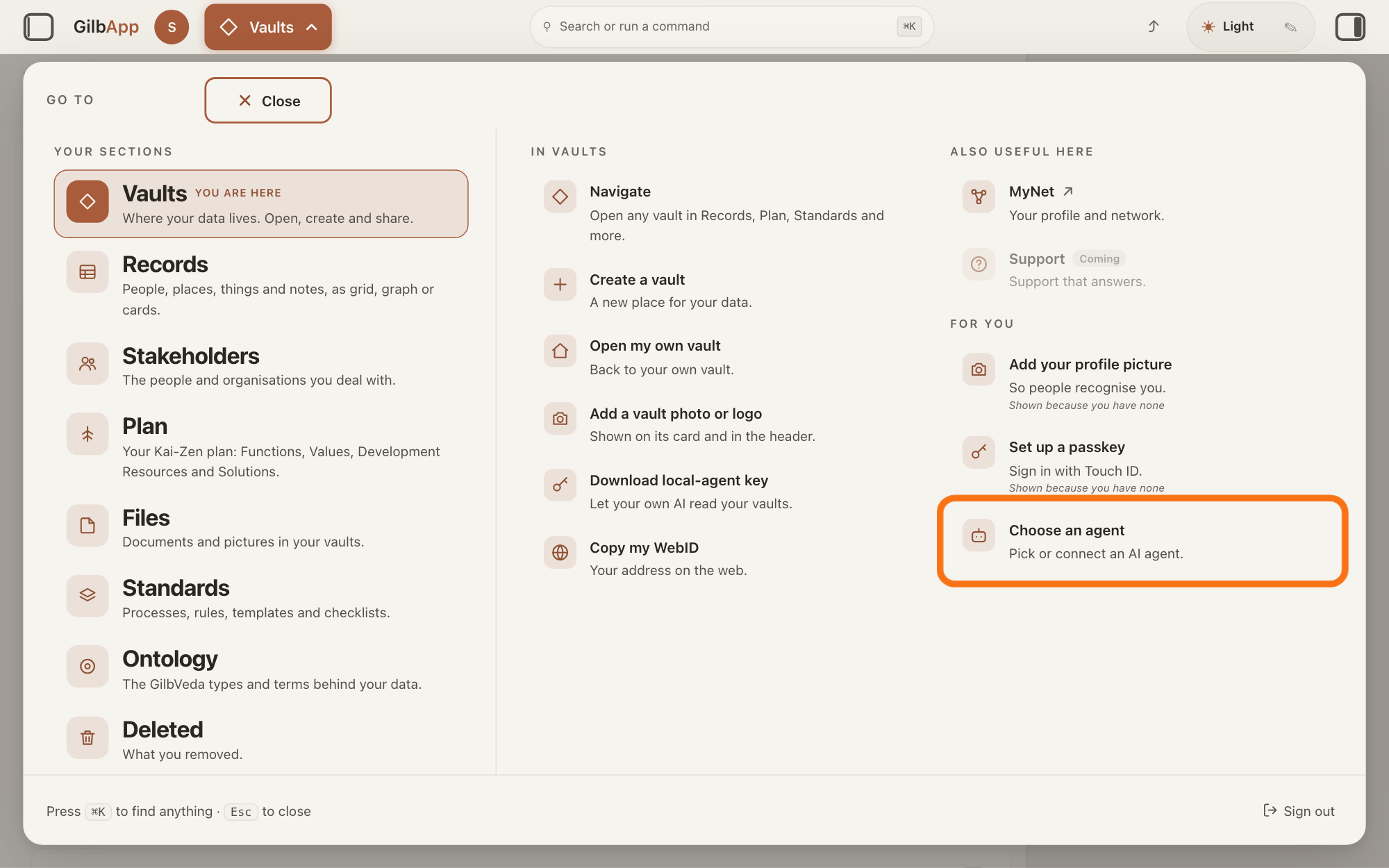
Press Main menu at the top left and choose Choose an agent.
Press Main menu, next to your profile picture at the top left, and under FOR YOU choose Choose an agent (Pick or connect an AI agent.). GilbApp opens the left pane, where you chat, and puts the cursor on the agent list at the top of it.
Show as text
Top left, the button next to your profile picture is open, and the "GO TO" panel fills the screen. In the right column, under "FOR YOU", the last row "Choose an agent" ("Pick or connect an AI agent.") has the orange outline. Click it.
More about this
The button shows the name of the section you are in, such as Vaults. The square button at the far left of the top bar also shows or hides the left pane. You can also search for Choose an agent in Search or run a command.
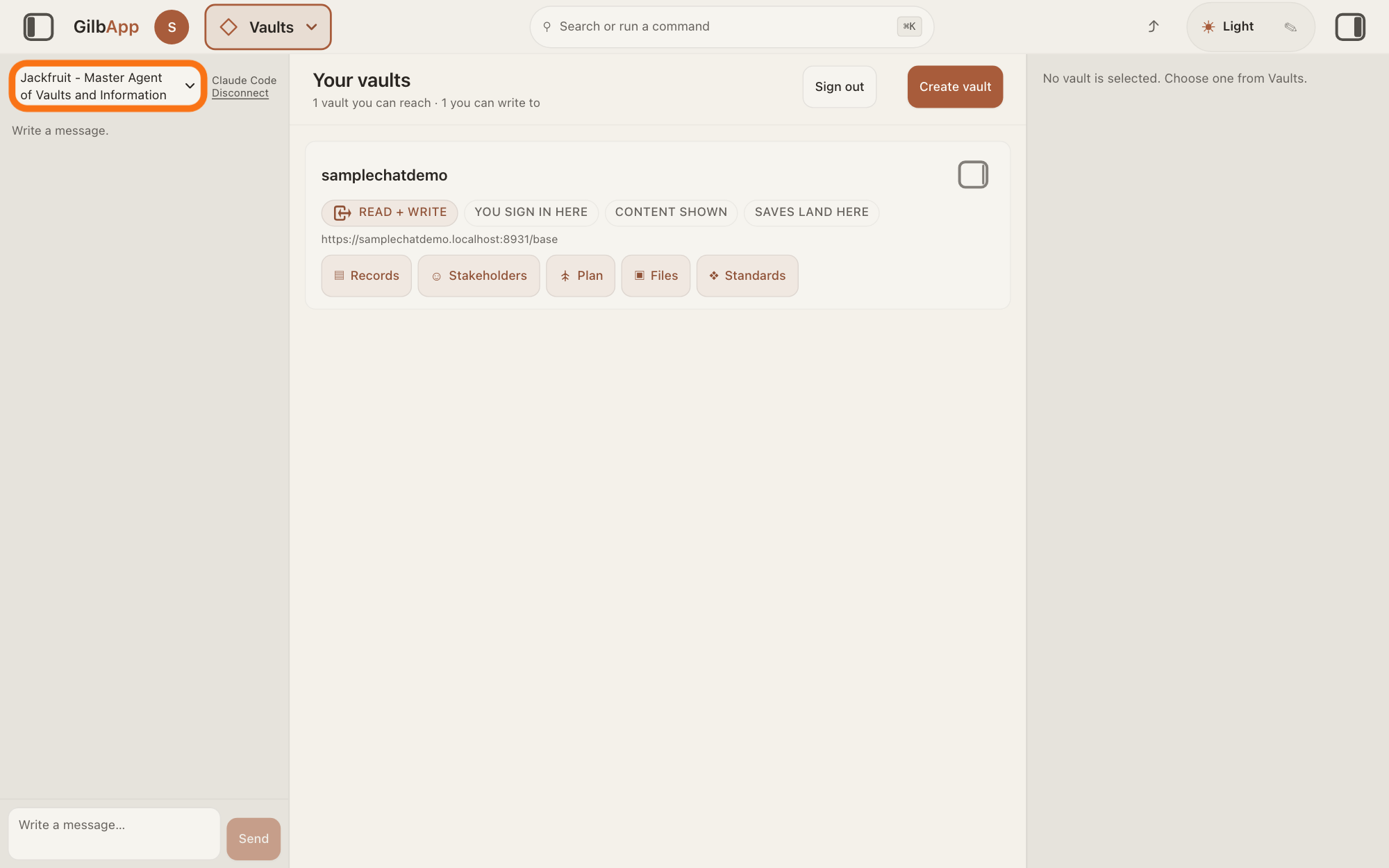
Choose Jackfruit - Master Agent of Vaults and Information in the agent list.
Press the agent list at the top of the left pane and choose Jackfruit - Master Agent of Vaults and Information. Each agent has its own chat, and the list shows which one you are in.
Show as text
The chat pane is now open on the left. At its top, the agent list has the orange outline and already shows "Jackfruit - Master Agent of Vaults and Information", with "Claude Code" and "Disconnect" to its right. If it shows another agent, click the list and pick Jackfruit.
More about this
Jackfruit is first in the list, so the chat opens with it chosen unless you chose another agent in this browser tab. The list comes from GilbPlatform each time the chat opens. GilbApp keeps your choice for this browser tab. While an agent is answering, the list is greyed out.
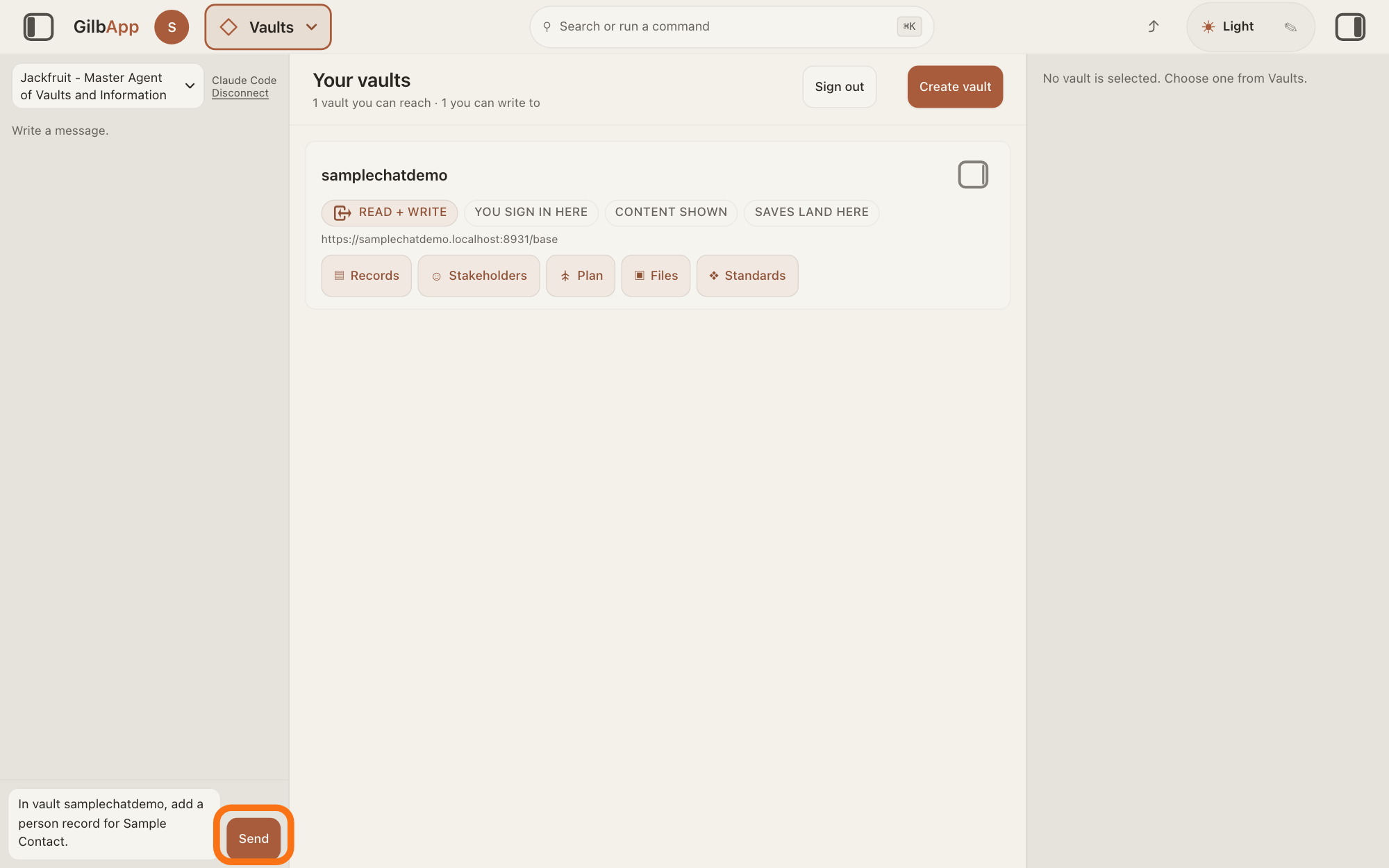
Type what you want done in Write a message… and press Send.
In Write a message…, say what Jackfruit should find, read, write or link, and in which vault, then press Send.
Show as text
The list at the top of the left pane shows "Jackfruit - Master Agent of Vaults and Information". At the bottom, the message box holds a request to add a person record in a vault, and "Send" to its right has the orange outline. Say what Jackfruit should do and in which vault, then click "Send".
More about this
Jackfruit works in your vaults as you, with your own access, in the vaults the middle of the screen lists, unless you name another vault in your message. It looks for a record of the same type and name first, and uses it instead of making a second one. At the end it lists every record it wrote, linked or ended, with its address, and says what it did not do and why.
Deeper
Also asked:
What is Jackfruit? Jackfruit, Master Agent of Vaults and Information, is the agent for your vaults: it finds, reads, writes and links records in them, and can make a new vault. It never deletes a vault.
Jackfruit can also make a new vault for you with the name you give, and tells you its address.
It never deletes a vault. It ends a record only when you ask for that record, and names it first. It gives or takes away someone's access to a vault only when the vault's owner says so, and first names the vault, the person and the access.
It gives every record a type from GilbVeda, GilbPlatform's shared list of concepts. When none fits, Agent.Concept finds or makes one.
In GilbApp's chat, Jackfruit works with your own access: it reaches only the vaults you can reach. It does not change your plan's specs, which is Kai-Zen's work, and it hands a change to a standard to Agent.Standard.
In Claude Code in Terminal you can work with Jackfruit too, once Claude Code is connected and bound to its AI vault, each by its own answer. There it acts as your AI vault and reaches only the vaults you gave that AI vault. Start Claude Code, type this line with your own short name, the one you gave your AI when you connected your computer, and press Return:
/mcp__gilb-<short name>__agent Jackfruit
This answer is written for a computer screen.
Source: Jackfruit (J 06gc28mranrr7ewfjfmm74ath0) steps Role, Vaults, NewVault, Specs (A change to a spec is Kai-Zen's work), Find, Concepts, Link, End, Report, Access, Standards (hand off to Agent.Standard), read 2026-11-09. GilbApp 0c933e55, src/lib/base/chatAgents.ts:8 (CHAT_AGENT_IDS Jackfruit first), src/components/agent/AgentChat.tsx:189-210 (tab's choice, else the first pick); production agent list https://gilb.com/base/ai/agents (read 2026-11-09: picks Jackfruit, Kai-Zen, Agent.Concept, Agent.Coder with descriptions Master Agent of Vaults and Information, Master Agent of Planning, Master of Concepts, Master of Coding; 19 entries pick:false), drawn as `Name - Description` by src/components/agent/AgentSelector.tsx:15-16, :65-78 (Jackfruit listed first); GilbPlatform 988605c5 src/ai/chat-agents.ts:43 (DEFAULT_CHAT_AGENT = Jackfruit); inventory row Capability.GilbApp.ChatAgentWorksInYourVaults (it acts only with your own access; vault-tools.ts); connector @kaigilb/gilbplatformcode-gilb-connector 0.5.12 (GilbApp vendor .tgz, served https://gilb.com/app/gilb-connector.mjs): src/connector.ts:33 (DEFAULT_AGENT = Kai-Zen), :471-482 (gilbplatform_agent), :543-553 (prompt agent, argument name), README.md:72, :77; GilbApp 0c933e55 src/lib/base/gilbConnector.ts:74 (server gilb-<name>); Claude Code docs https://code.claude.com/docs/en/mcp Use MCP prompts as commands (read 2026-11-09). vault sentence in words (knownLimits), as GilbApp sends the listed vaults (AgentChat.tsx:574, useListedVaultIds).
Checked against GilbApp d529620.