
The data I saved is not there. Where did it go?
Short answer
Press Main menu, choose Vaults, press ▤ Records on your app's vault, search and select it; if missing, press Main menu, choose Deleted.
Before you start
You need to be signed in to GilbApp on a computer, with access to the vault your app writes in, which holds some records. The last picture shows a vault where one record was deleted. The pictures show a made-up person on a test site; your screen shows your own name and address.
Words used here (3)
- GilbApp
- GilbApp is the app, opened in a web browser at https://gilb.com/app, where you open, fill and share your vaults.
- record
- A record is one piece of data with its own address, such as a person, a place, a thing or a note.
- field
- A field is one named fact on a record, such as its title or a due date; its name comes from GilbVeda.
Steps
Press Main menu at the top left and choose Vaults.
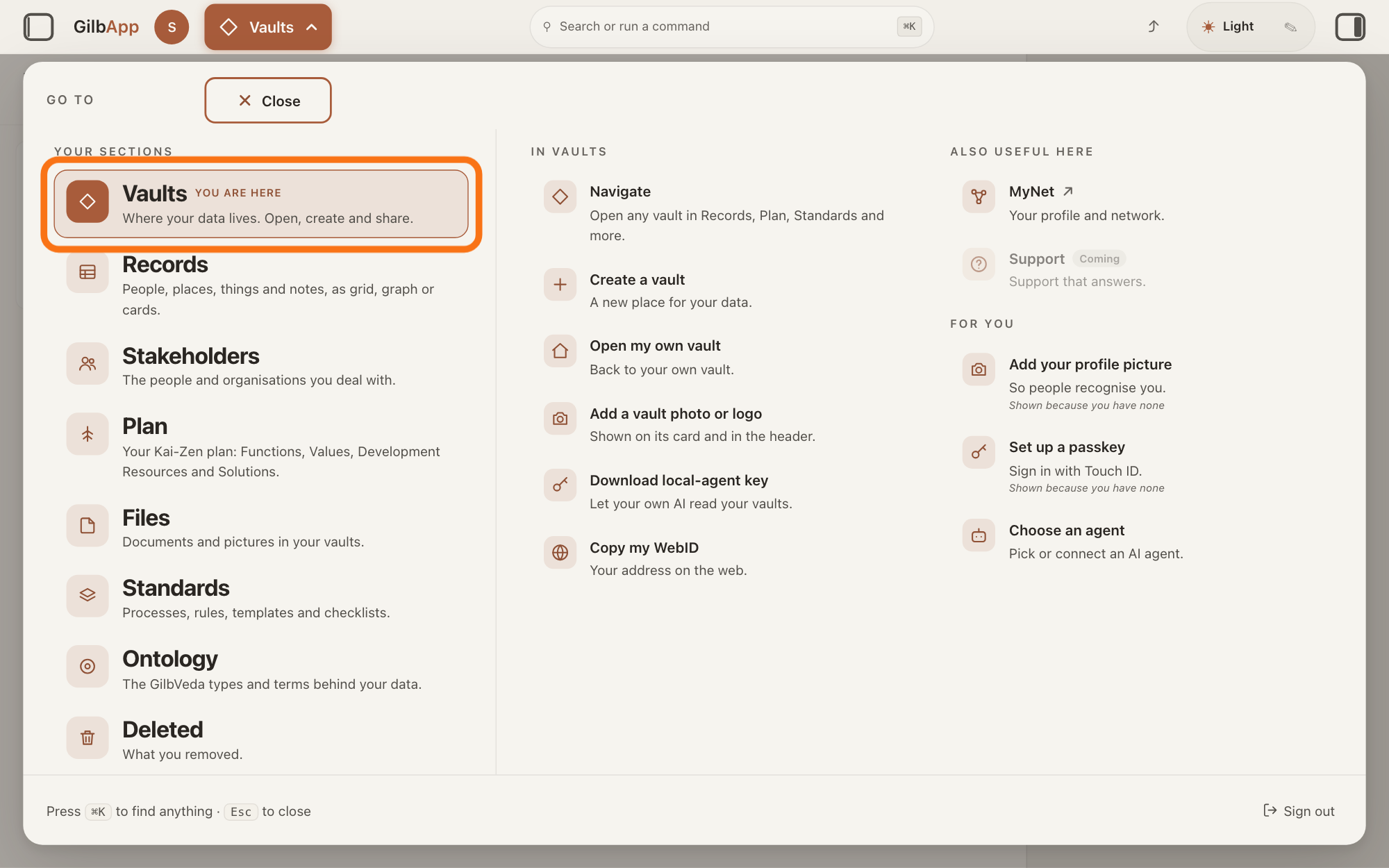
Press Main menu, next to your profile picture at the top left, and under YOUR SECTIONS choose Vaults. The button shows the name of the section you are in, such as Vaults.
Show as text
Top left, "Main menu" is open, and the "GO TO" panel fills the screen. Under "YOUR SECTIONS", the row "Vaults" ("Where your data lives. Open, create and share.") has the orange outline. Click it.
More about this
A panel headed GO TO opens; Vaults reads Where your data lives. Open, create and share. The Vaults screen lists the vaults you can reach as cards. A vault you cannot reach has no card.
Press ▤ Records on the card of the vault your app writes in.
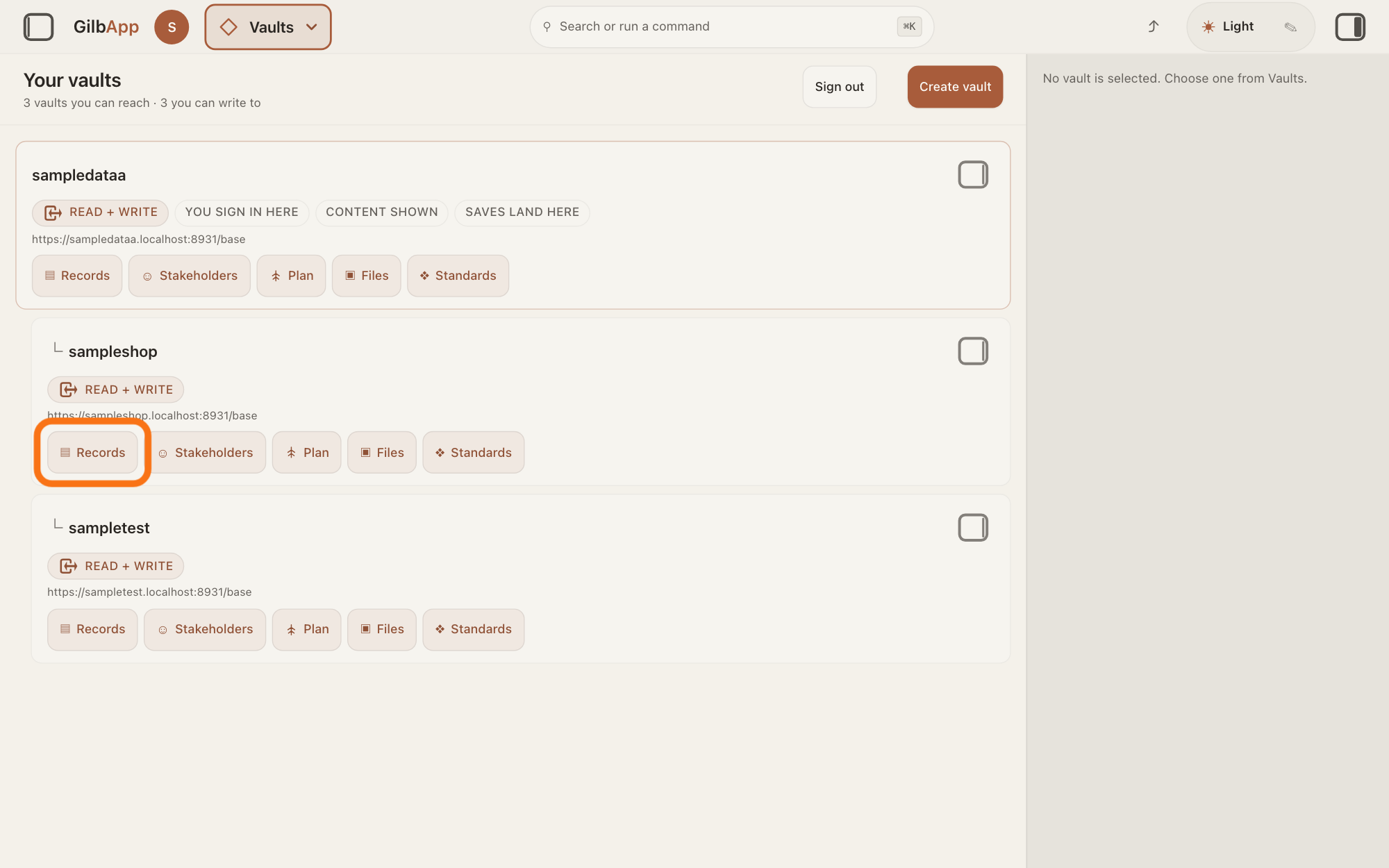
On the card of the vault your app writes in, press ▤ Records. The Records screen opens with that vault's records in a list.
Show as text
The middle of the screen lists your vaults as cards. On the card of the vault your app writes in, the button "▤ Records", the first in the row of buttons on the card, has the orange outline. Click it.
More about this
Its hover text is Open, the vault's name and in Records. The other buttons on the card, such as ▣ Files, open the vault in those sections; you do not need them here. Clicking the card itself only selects it, and the small square button at its top right, Show vault info, shows the vault's details. If you do not know which vault your app writes in, ask your AI.
Search and select the record in the list.
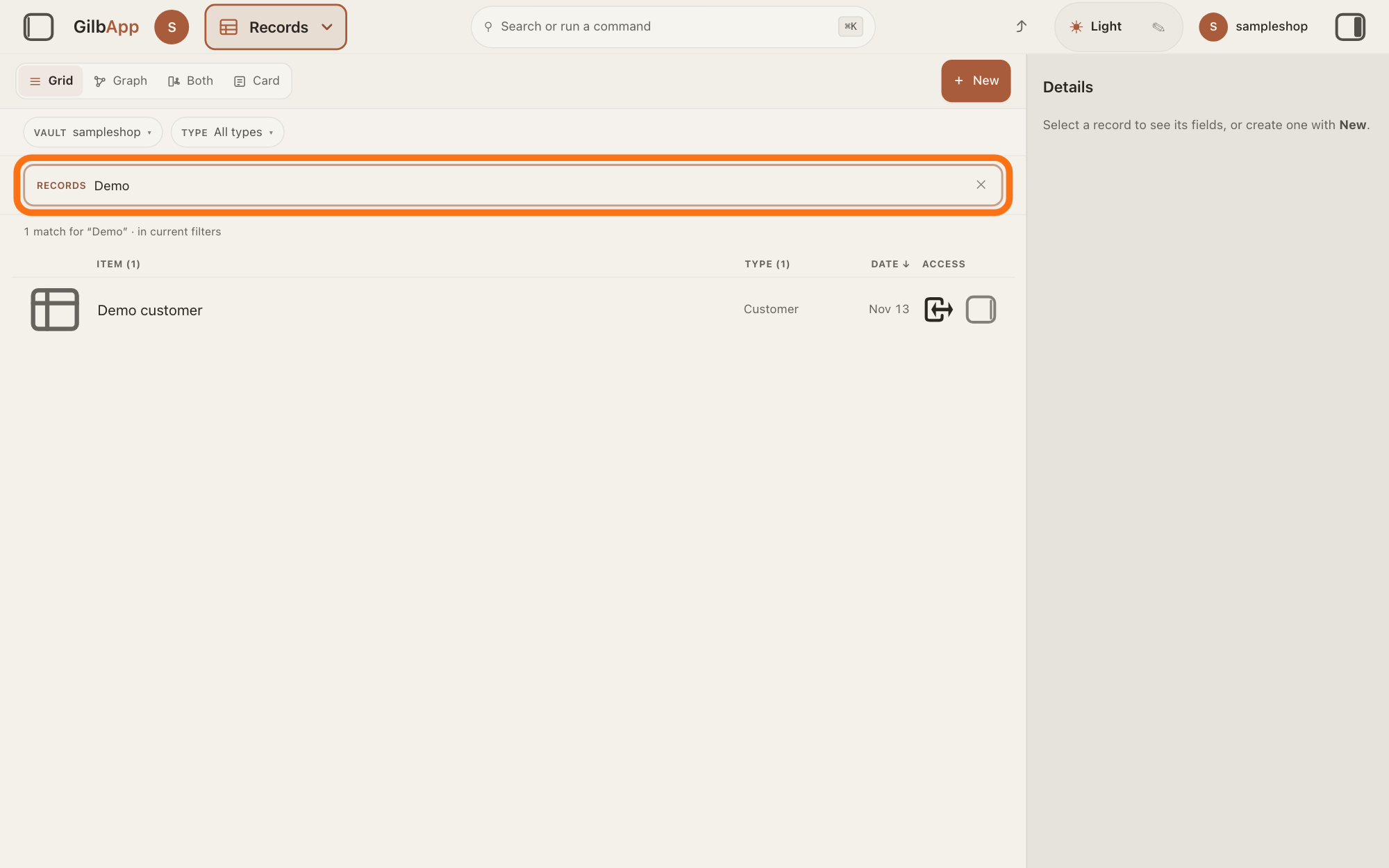
Type a word of the record's name in the search box marked RECORDS above the list, and click the record in the list. The record opens in the middle of the screen with its fields, the data your app saved in it.
Show as text
The middle of the screen lists the vault's records, with "VAULT" and "TYPE" above them. The search box marked "RECORDS", outlined in orange, holds a word, and the list shows the records whose name holds it. Click a record to see its fields.
More about this
With no match the list says No matches and Nothing in the selected vaults matches with your words; try a whole word, or another vault. The small square button at the right end of a row, with the hover text Show card info, shows the record in the right pane and keeps the list; you do not need it here. ✕ in the box clears it. TYPE above the list keeps only one kind of record, such as your app's orders, and VAULT chooses which vaults the list shows. The answer How do I find a record? shows more. If the record is there, it was saved in this vault: read its fields to see what it holds. If not, go on to step 4.
Press Main menu at the top left and choose Deleted.
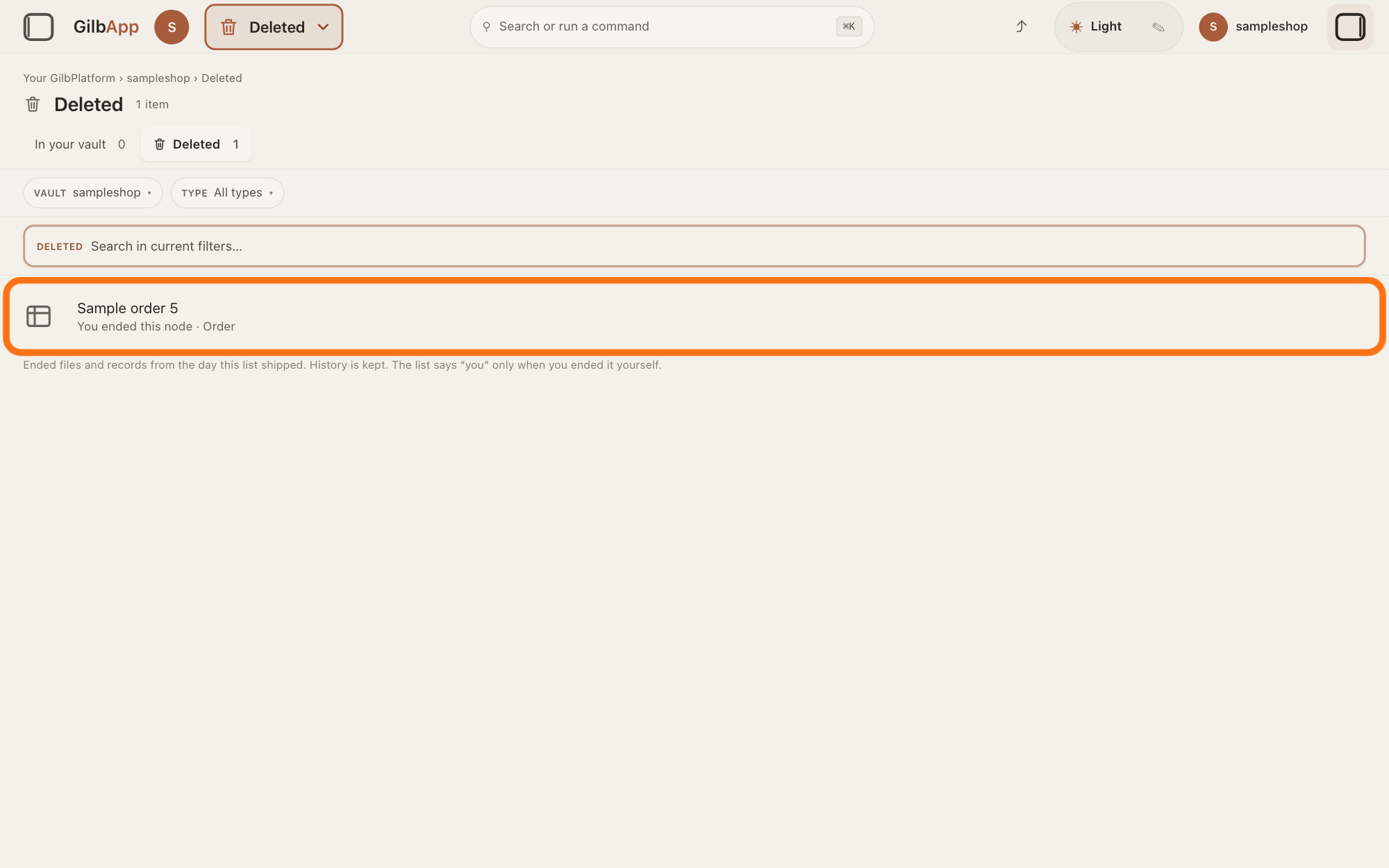
Press Main menu at the top left again, and under YOUR SECTIONS choose Deleted. The screen Deleted lists what was deleted in the vault you are in.
Show as text
The middle of the screen is headed "Deleted" with "1 item" beside it. The one row, outlined in orange, shows the record's name and "You ended this node". The line under the list reads "Ended files and records from the day this list shipped. History is kept. The list says “you” only when you ended it yourself."
More about this
In the panel, Deleted reads What you removed. The heading counts the rows, such as 1 item. A record's row shows its name, then You ended this node or Ended node (a node is a record; ended means deleted) and its type. With none, the screen says Nothing ended yet. VAULT and TYPE narrow the list, and the box that shows Search your vault… searches it. The tabs In your vault and Deleted switch between the files still there and this list. There is no button here to bring a record back.
Deeper
Also asked:
I cannot find something I know I saved. Where is it? Press Main menu, choose Records and type a word of its name; to look in every vault, open Records, press Main menu and choose Records from all my vaults. If it was deleted, Deleted in Main menu lists it.
Your app keeps its data in vaults, not in a database of its own, a store a program keeps its data in. A vault is the place where a person or a group keeps their records; a record is one piece of data with its own address, such as a person, a place, a thing or a note. Saved data is most often in one of these places.
In another vault. Records shows the vault you picked in Vaults, or your own vault if you picked none. Which vault your app writes in, and which kinds of record, is decided while it is built: ask your AI if you are not sure. To list the records of all your vaults, open Records, press Main menu and under IN RECORDS choose Records from all my vaults (Not just the open one.). A vault you cannot reach has no card.
In someone else's vault. The people who use your app keep what they put in it in their own vaults, not in yours, and you do not see it unless they share it with you. While you try your app signed in as yourself, it reads and writes in your vaults. If you saved it signed in with another account, look there.
Not found by the search. Part of a word finds a record only among the rows the list has already read in the open vault; a record of another vault is found only by a whole word. A choice under TYPE or VAULT narrows the list too.
Deleted. Deleting ends a record; it does not erase it. Deleted lists ended files and records from the day that list shipped. GilbApp has no button to bring a deleted record back; the answer How do I delete a record, and can I get it back? says more.
Never saved. If your app showed an error when you saved, the data may not be there; see My app shows an error. What do I do? If GilbApp cannot reach the vault, it says Couldn’t reach your vault: check your connection and try again.
Still missing? Tell your AI what you saved, where in your app, when, and which account you were signed in with. For your AI, the developer answer Why is my result empty? lists the causes.
This answer is written for a computer screen. In a window narrower than 840 pixels, such as a phone, the side panes are hidden and the right pane is Detail in the bar at the bottom.
Source: GilbApp 49b1ae53 (https://gilb.com/app/version.json, read 13 November 2026): src/shell/gilbAppMenuRows.ts:74-76 (Vaults, Where your data lives. Open, create and share.), :135 (Records from all my vaults, Not just the open one.), :206-207 (Deleted, What you removed.); src/components/VaultsView.tsx:257 (Show vault info); src/components/VaultSectionButtons.tsx:70-73 (▤ Records, ▣ Files); src/components/records/RegisterScopedSearch.tsx:73-74 (Search in current filters…, Search your vault…); src/components/records/RecordGrid.tsx:2569-2572 (No matches, Nothing in the selected vaults matches); src/components/records/FilesView.tsx:300-322 (Deleted, item count), :478 (ended from the day the list shipped), :642 (You ended this node, Ended node), :681-686 (Couldn’t reach your vault, Nothing ended yet). Live answers, sentences shared: Where does my app keep its data, and can I see it? (steps 1 to 3, vaults not a database, users' vaults); How do I find a record? (whole words, TYPE, VAULT); How do I search across all my vaults?; How do I delete a record, and can I get it back? (step 4, no button to bring a record back); Why is my result empty?; My app shows an error. What do I do?.
Checked against GilbApp d529620.