
← What is the difference between …?
What are circles, and how do I use them?
Checked against GilbApp d529620.
Press Main menu, choose MyNet, search for a person, open their card, press Set connection type and choose a circle.
You need to be signed in to GilbApp on a computer. The pictures show a made-up person on a test site; your screen shows your own name and address.
Steps
Press Main menu at the top left and choose MyNet.
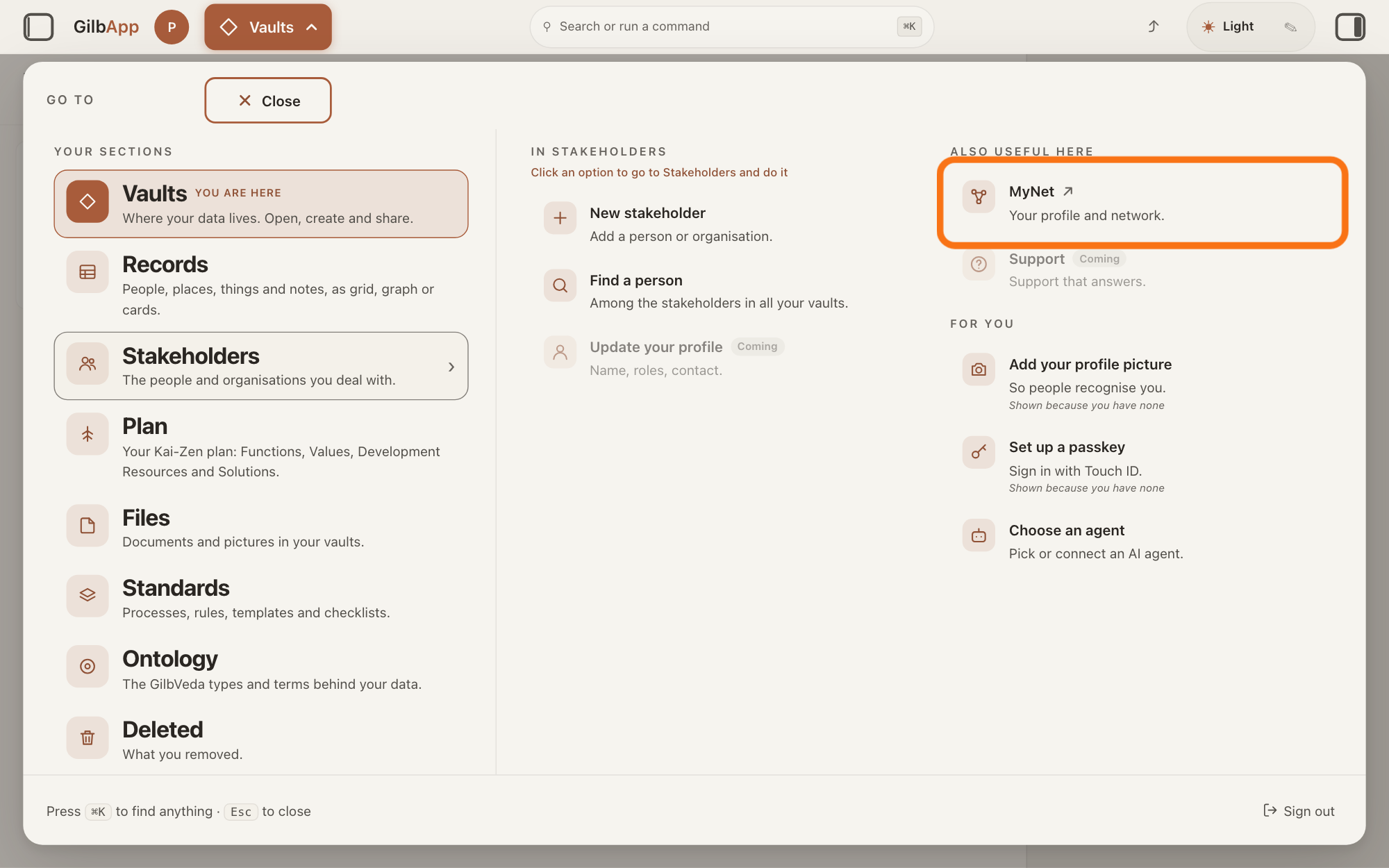
Press Main menu, next to your profile picture at the top left, rest the pointer on Stakeholders and choose MyNet under ALSO USEFUL HERE. MyNet, Gilb's app for your profile and network, opens in a new tab.
Show as text
Press "Main menu" at the top left and rest the pointer on "Stakeholders". In the right-hand column "ALSO USEFUL HERE", press "MyNet ↗", "Your profile and network.", outlined in orange. MyNet opens in a new tab.
More about this
The button shows the name of the section you are in, such as Vaults. MyNet reads Your profile and network., and ↗ beside it means it opens in a new tab. MyNet may ask you to sign in first, with your e-mail address and a code, as GilbApp does. You can also type https://gilb.com/mynet in your browser's address bar. On your own card in Stakeholders, Edit in MyNet opens your profile at once.
Search for the person in Search your network.
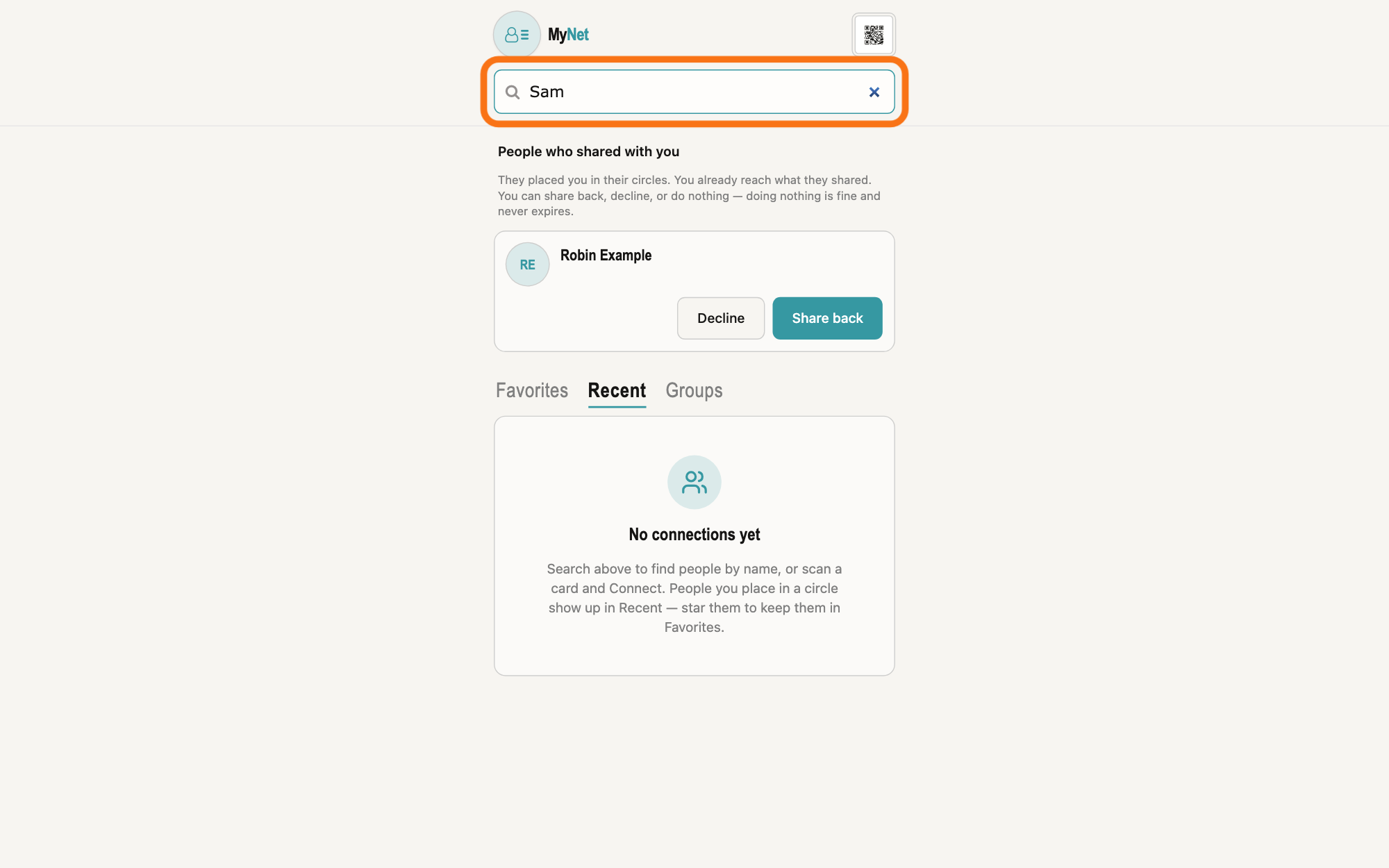
On MyNet's home screen, type a word of the person's name in the box Search your network and press Return. MyNet lists the people you are allowed to find; the answer on finding people by skill tells more about the list.
Show as text
MyNet's home screen. The outlined box "Search your network" at the top holds the start of a name; press Return to search. Below it, "People who shared with you" shows a notice from another person, then the tabs "Favorites", "Recent" and "Groups".
More about this
Only a person with a GilbPlatform account can be placed in a circle. You can also paste their WebID, the web address GilbPlatform knows a person by, or a link to their card in the box, or open a link to their card that they sent you and press Connect to me and my network there. People already in one of your circles are also listed under Recent or Favorites below the box; click a name there to open the card.
Choose the person in the list to open their card.
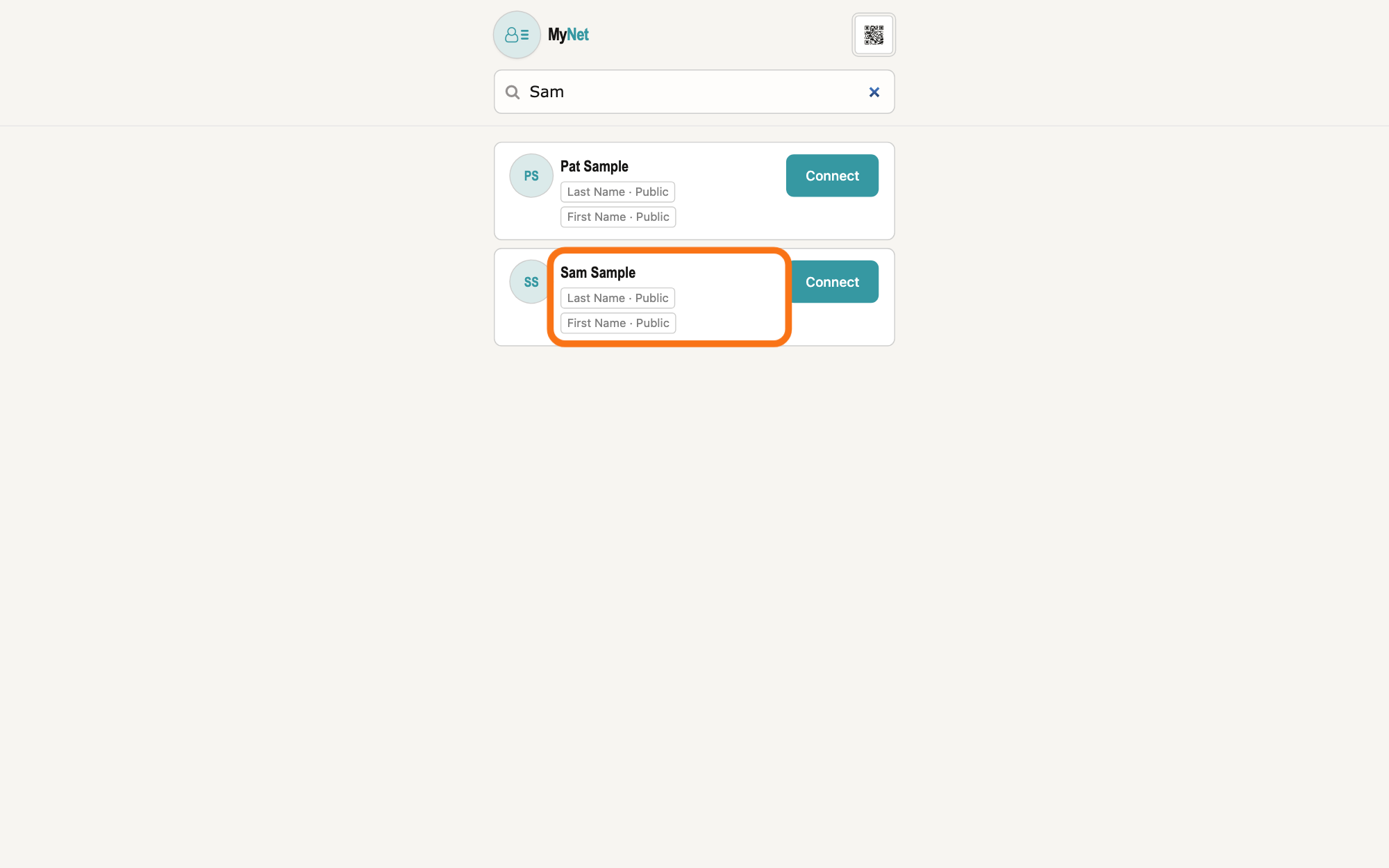
Click the person's name in the list. Their card opens, with their name and what they let you see.
Show as text
The search lists everyone whose first or last name starts with the word you typed, here two people. Each row has the person's name, labels such as "Last Name · Public" and "Connect" at the right. The name of the person you want is outlined; click it to open their card.
More about this
Connect on the row instead opens the same choice of circles under the row; its Connect at the foot then opens the card, and Cancel closes it. On the card, Where/How we met and My Note are notes only you can read; the answer on writing a private note explains them. At the foot, a person you have not placed yet shows You are not connected to and their name, with Connect, which places them in Personal · 1st Connection at once and opens the choice of circles. Browse their network lists the people in their circles. Your picture at the top left, whose hover text there is Go home, and the house button beside it take you home.
Press Set connection type at the top of the card.
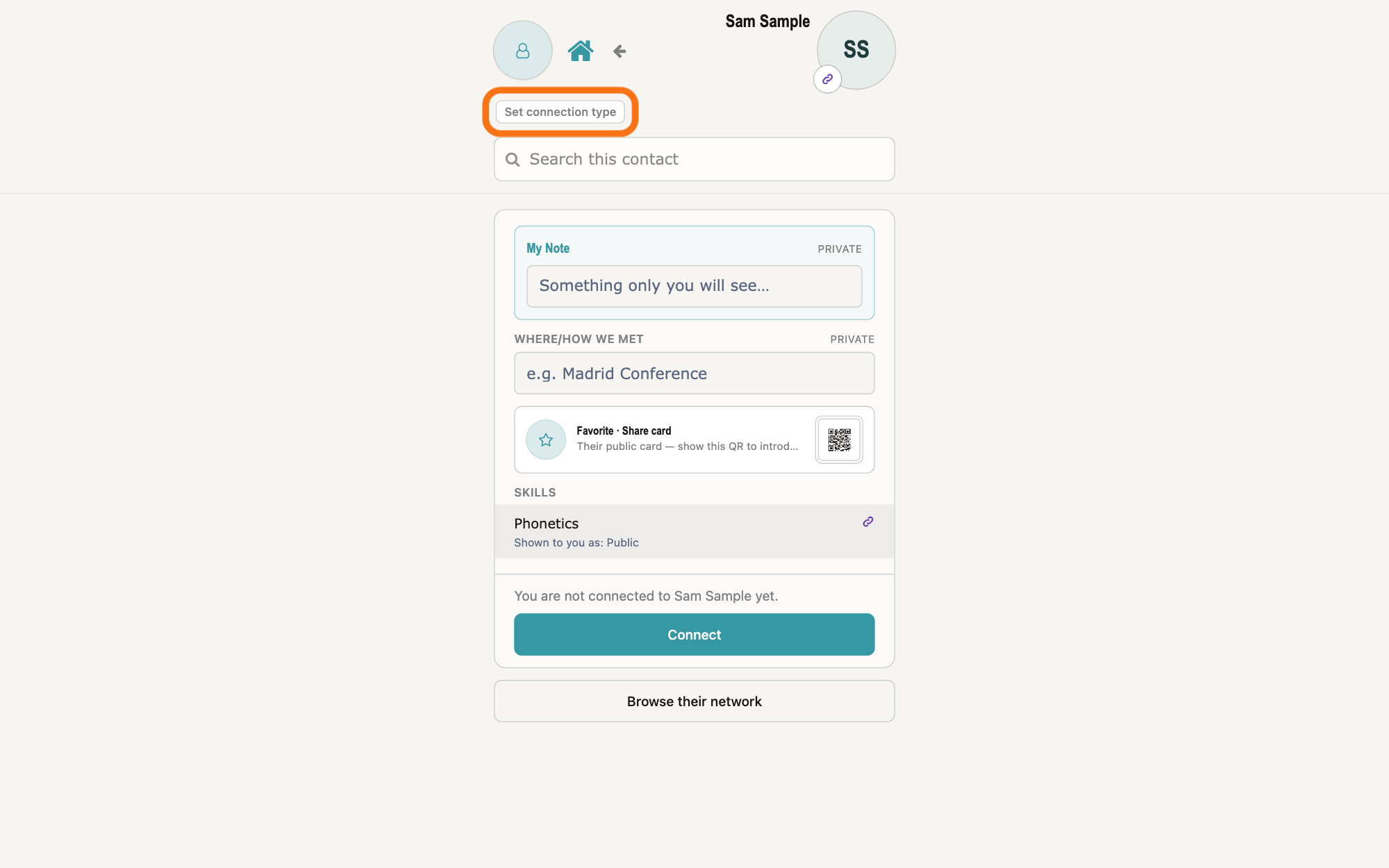
Press Set connection type under your picture at the top left of the card; once they are in a circle, the circle's name shows there instead, such as Professional Inner Circle, written there without the dot, and you press that. A panel opens that says Click to select a different connection type.
Show as text
The person's card is open, with their name and picture at the top right. Under your picture at the top left, the small button "Set connection type" is outlined. Below are "My Note", "Where/How we met", their skills and "Connect".
More about this
The panel is headed 2. Add Connection Type (gives access level) and holds Personal and Professional, each with two lines, such as Personal · 1st Connection and Personal · Inner Circle. Loading your circles… shows while MyNet reads them. Pressing the same place at the top again closes the panel; Refresh at its foot reads your circles again.
Press a circle under Personal or Professional.
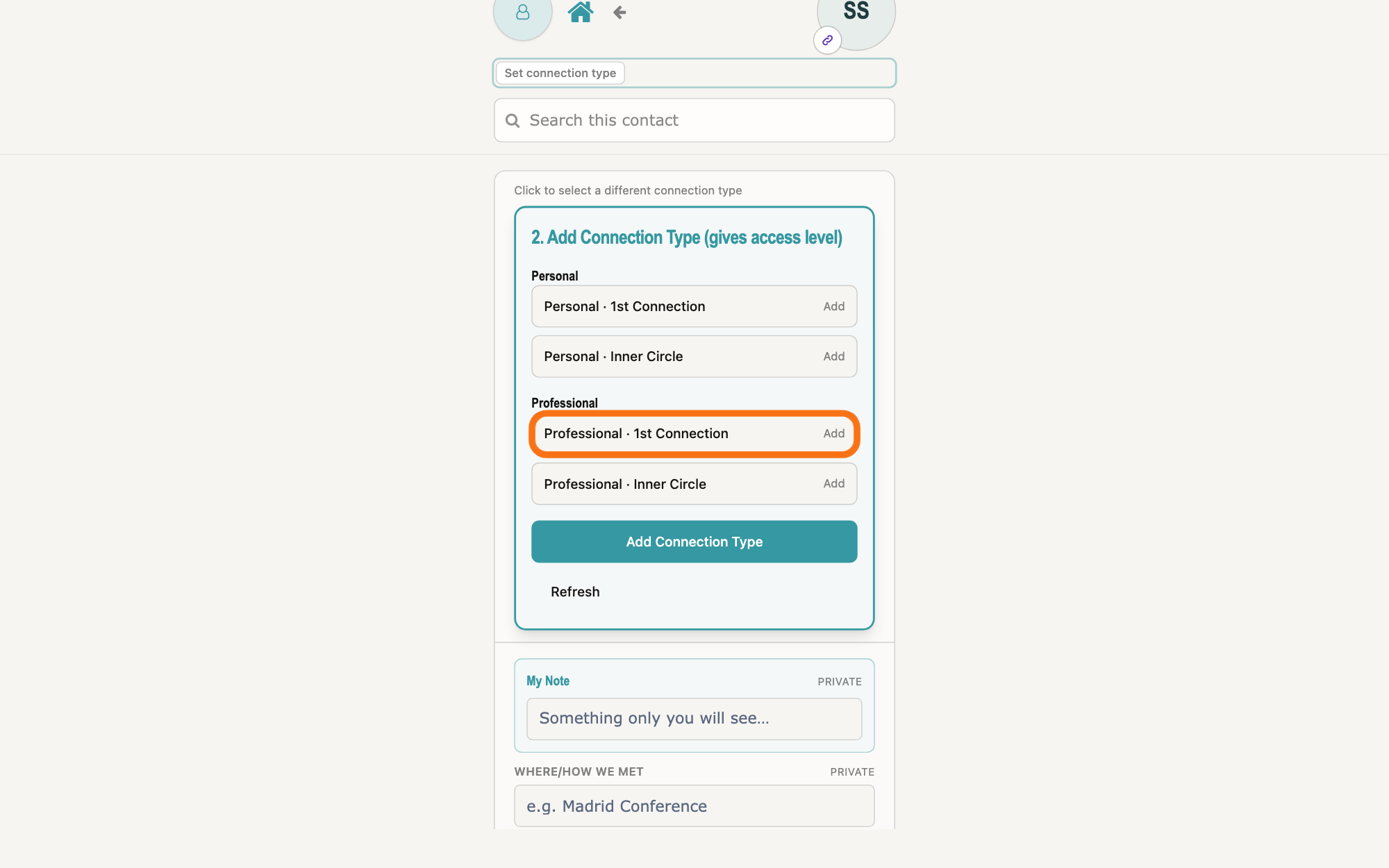
Press the line of the circle you want, such as Professional · 1st Connection. MyNet saves it at once, and the line then shows In circle.
Show as text
The panel "2. Add Connection Type (gives access level)" is open on the card. Under "Personal" and "Professional" are two lines each, every one with "Add" at its right. The line "Professional · 1st Connection" is outlined; press it to place the person in that circle.
More about this
Personal is for people you know privately and Professional for people you know through work; Inner Circle is for the closest of them. Choosing Inner Circle also lights the 1st Connection line, which then shows Included, because the inner circle is part of the wider one. A person can be in a personal and a professional circle at once. Press a line that shows In circle again to take the person out of that circle; pressing 1st Connection while they are in Inner Circle moves them to 1st Connection only. If a change does not save, the panel says Placement did not stick after save and asks you to try again.
Press Add Connection Type to close the panel.
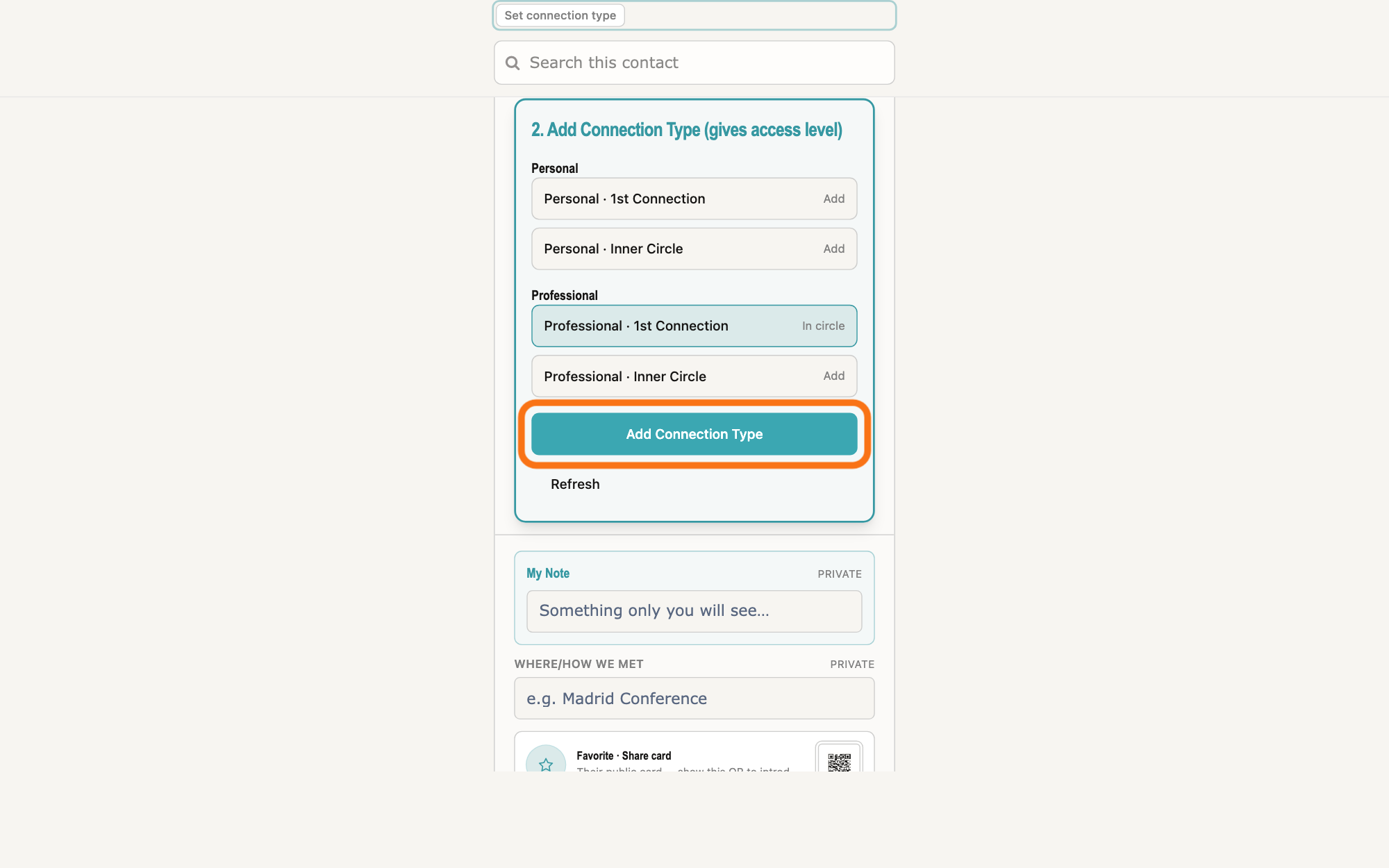
When the line you want shows In circle, press Add Connection Type at the foot of the panel. The panel closes, and the card shows the circle under the person's name.
Show as text
In the panel, the line "Professional · 1st Connection" is now lit and reads "In circle"; the other lines still read "Add". Below them, the wide button "Add Connection Type" is outlined. Press it to close the panel. "Refresh" is under it.
More about this
Your choice was saved when you pressed the line. If you press Add Connection Type before choosing one, MyNet puts a person you have not placed yet in Personal · 1st Connection. From then on the person can see the entries on your profile, the card about yourself in MyNet, whose sharing level names that circle. MyNet does not ask them first; they see a notice on their home screen, as step 7 shows for you.
If someone placed you in a circle, press Share back or Decline under People who shared with you.
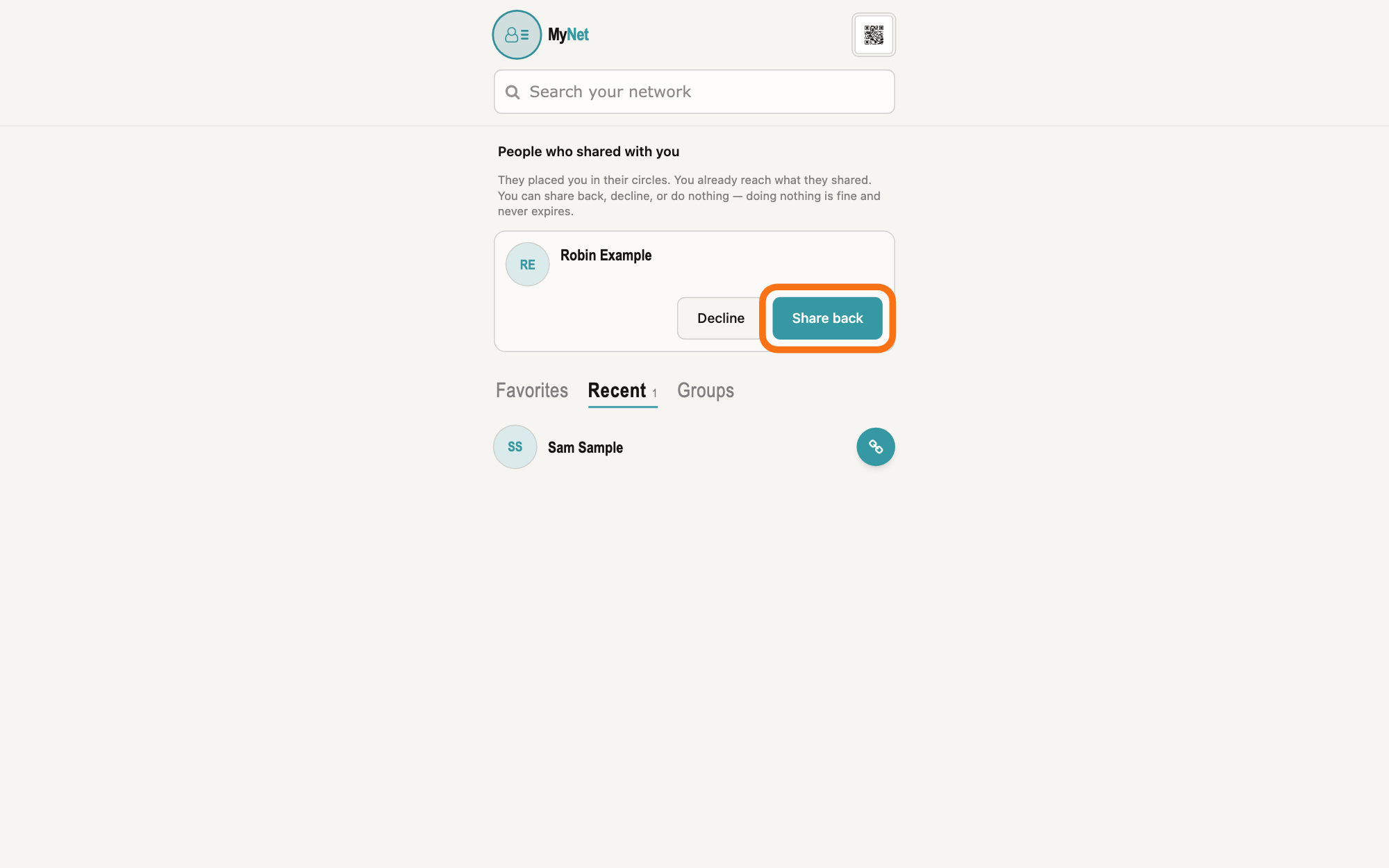
Press your picture at the top left of the card, whose hover text there is Go home, to go home, where People who shared with you lists the people who placed you in one of their circles. Press Share back to place them in one of yours, or Decline to remove the notice.
Show as text
Back on MyNet's home screen. Under "People who shared with you" a line explains that they placed you in their circles. The notice shows the other person's name with "Decline" and the outlined "Share back". The person you placed now shows under "Recent".
More about this
It says "They placed you in their circles. You already reach what they shared. You can share back, decline, or do nothing — doing nothing is fine and never expires." Share back opens the same choice of circles under 1. Add context, with Where/How we met and My Notes about the Contact (optional); then Open their card opens their card and Cancel closes the choice. Decline takes nothing away from either of you, the person cannot tell it from no answer, and the notice does not come back, even if they place you again. MyNet does not say which circle they chose. The list is not shown when no one has placed you.
Deeper
Also asked:
What is the difference between a circle in MyNet and Circle on a card? A circle in MyNet is the people you placed there, and it decides what of yours they can see. Circle on a card in GilbApp is only a label for how you know someone: it gives no one access.
A circle in MyNet is the people you placed there, and it decides what of yours they can see. In GilbApp, Circle on a card is only a label for how you know someone, such as Professional Inner Circle: it gives no one access and does not put the person in a circle in MyNet, as the answer on choosing how you know someone says.
There are four: Personal · 1st Connection, Personal · Inner Circle, Professional · 1st Connection and Professional · Inner Circle. The people in a circle can see the entries on your profile whose sharing level names that circle; in that list the inner circle is called 1st Inner Circle, and Pers & Pro means either the personal or the professional one. The answer on finding people by skill lists the sharing levels. Only you can change who is in your circles.
GilbApp shows the circles you placed a person in but cannot change them: under In your circles on a card of yours linked to that person, with "You placed them in this circle. It decides what of yours they can see. Change it in MyNet.", and as rows in Stakeholders, as the answer on seeing all your stakeholders says.
MyNet shows the same narrow column on a computer as on a phone; the pictures show a computer window.
Source: MyNet e894951bcfda372a6218c512c15bb4b582c1a794 (https://gilb.com/mynet/version.json, built 2026-10-27, read 2026-11-10) and its live public bundle /mynet/assets/index-Bw15VNOy.js (read 2026-11-10, for the gilb-stakeholders(-ui) words). Step 1: GilbApp af0f04ee shell/gilbAppMenuRows.ts:142-156 (Stakeholders: also mynet), components/menu/sectionMenuList.ts:305-306 ('MyNet', 'Your profile and network.', href MYNET_BASE), section-menu 0.2.4 SectionMenu.tsx:88 ('Also useful here'), :942-948 (CSS capitals), :857-876 ('↗', new tab); lib/base/granteePublicCard.ts:35-38 (https://gilb.com/mynet); OwnCardBand.tsx:13-26, :80-88 ('Edit in MyNet'). Step 2: AppShell.tsx:275-305 (home search on Return); pages/Contacts.tsx:11-13 (a pasted WebID or card link opens the card); components/card/BusinessCard.tsx:374 ('Connect to me and my network'); components/connection/MyConnectionsList.tsx:6 (only people you placed are listed), :385-397 ('Favorites', 'Recent'). Step 3: components/search/SearchResultList.tsx:1-3 (placement is unilateral and immediate, no request), :109-116, :193-241 ('Connect', 'Cancel', the panel, 'Connect' opens the card); components/connection/ConnectionOriginField.tsx:108 ('Where/How we met'); ContactNote.tsx:174 ('My Note' / 'My Notes about the Contact (optional)'); ContactCard.tsx:162-165 (one-tap Connect = personal · first-degree), :1176-1213 ('You are not connected to … yet.', 'Connect', 'Connecting…', then the panel opens), :1217-1234 ('Browse their network'); NetworkBrowseSection.tsx:391 ('Only people in their circles.'); AppShell.tsx:316-318, :343-378 (K2: the card's header has no MyNet wordmark; the holder picture, hover 'Go home', and the house beside it go home). Step 4: AppShell.tsx:320-395 (the shared ContactHeader draws the circle chips; pressing them toggles the panel); live bundle (ContactHeader: 'Set connection type' for a person, 'Set access' for a group; labels Personal / Professional · 1st Connection / Inner Circle, Inner shown alone; the card's chip drops the middle dot: `jg(e)=e.replace(' · ',' ')` in the chip `Ng`, so 'Professional Inner Circle'); ContactCard.tsx:772-800 ('Click to select a different connection type', the panel without the notes); ConnectionPlacement.tsx:226-299 ('Loading your circles…', '2. Add Connection Type (gives access level)', 'Personal', 'Professional', rows, 'Add' / 'In circle' / 'Included'), :352-360 ('Refresh'). Step 5: ConnectionPlacement.tsx:1-8 (four atomic placements; within a context 1st or Inner; Inner also stores 1st), :126-155 (saved on each press; 'Placement did not stick after save (…). Please try again or re-sign-in. If it keeps failing, report this message.'); lib/base/audienceRungMembership.ts:82-104 (lit rows; pressing a lit row clears it; 1st while Inner demotes). Step 6: ConnectionPlacement.tsx:53-57, :308-350 ('Add Connection Type'); ContactCard.tsx:791-799 (it records the one-tap placement when none, then closes). Step 7: pages/Contacts.tsx:486; components/connection/PlacementNotices.tsx:1-16 (clauses), :114-128 (hidden when empty), :131-253 ('People who shared with you', the line, 'Share back: …', 'Cancel', 'Open their card', 'Decline', 'Share back', no Ignore button); lib/base/placementNotices.ts:39-42 (the server returns no rung), :75-78 (decline confers nothing, revokes nothing). Deeper: GilbApp af0f04ee components/records/PersonPlacementChips.tsx:1-19 ('In your circles', 'You placed them in this circle. It decides what of yours they can see. Change it in MyNet.', read-only), ContactCardSlots.tsx:7-11 (the GilbApp chip is a label; in MyNet a circle membership is access); MyNet model/profile.ts:345-350 ('1st Inner Circle' in the sharing list); AppShell.tsx:13, :631-632. GilbPlatform 4d008a55: src/routes/connect-audience-rung.ts:15-32 (the caller never names a group; the holder is always the signed-in person; only the four atomic sets are stored; either-context is derived); src/authz/audience-tier.ts:7-9, :212-223 (an entry at a rung is read only by the holder, public, the signed-in rung, or a viewer whose circle memberships overlap the rung); src/baseconnect/audience-rung/rung-enumeration.ts:14-17 ('Pers & Pro' is the union); src/routes/connect-placement-notice.ts:10-20 (never silent; share lives on the holder's act alone; ignore writes nothing; decline stands person-scoped and re-placement does not re-ask; the initiator cannot tell ignore from decline). GilbVeda read publicly 2026-11-10: t:AudienceRungMembership, a:audienceContext, a:audienceDepth, t:CircleLabel (examples: 'Personal · 1st Connection: a friend the holder knows personally', 'Professional · Inner Circle: a colleague the holder works with closely'), t:PerPersonConnectionDecline ('IT CONFERS NOTHING AND IT TAKES NOTHING AWAY'). Going home from a card: MyNet AppShell.tsx:316-318, :376 (the contact header: 'No MyNet logo', 'NO MyNet wordmark'), :343-365 (the holder picture navTo home, hover 'Go home'), :377-378 (House and Back beside it), :145 (home = '/' and no contact open), :156-160 (goHome clears the search); Avatar.tsx:137-145 ('Go home' / 'Open your profile'). Placement panel rows 'Personal · 1st Connection' etc.: live bundle `Sc(e)` = context · depth; ConnectionPlacement.tsx:290 (placementLabel).