
← Back to What happens when I sign out?
How do I remove a computer from my account?
Short answer
Press Main menu, choose Vaults, press your vault card's panel button, press Revoke on the computer under COMPUTERS SIGNED IN, then Confirm revoke.
Before you start
You need to be signed in to GilbApp on a computer, and the computer you want to remove must be one added with gilb-computer add, a command run on that computer; the end of this answer says what else can act as you.
The pictures show a made-up person on a test site; your screen shows your own name and address.
Words used here (2)
Steps
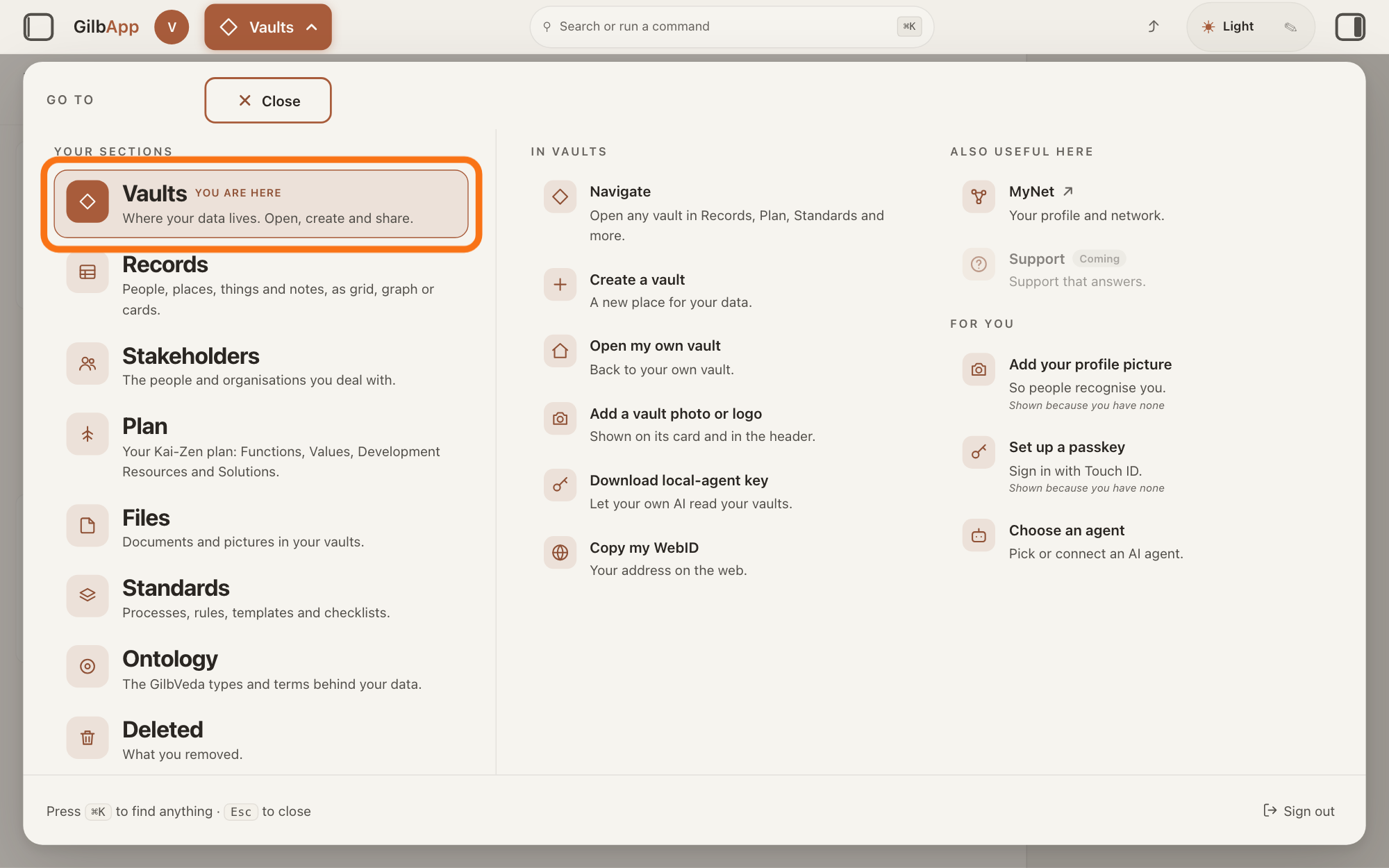
Press Main menu at the top left and choose Vaults.
Press Main menu, next to your profile picture at the top left, and under YOUR SECTIONS choose Vaults. The button shows the name of the section you are in, such as Vaults.
Show as text
At the top left, "Main menu" is open and the panel headed "GO TO" fills the window. In the left column under "YOUR SECTIONS", the outlined row "Vaults" reads "Where your data lives. Open, create and share." Click it.
More about this
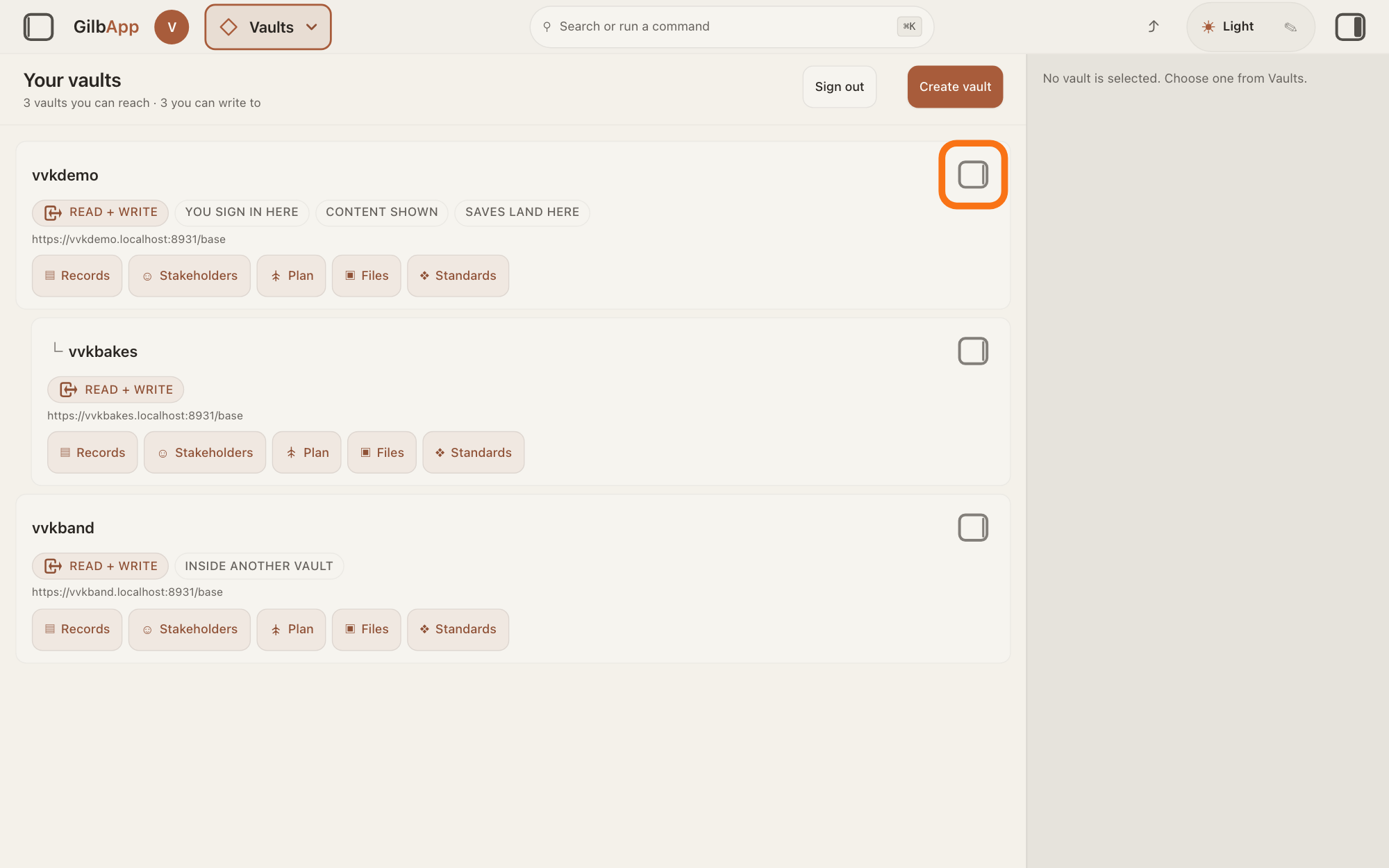
The Vaults screen lists your vaults as cards.
Press the panel button at the top right of your vault's card.
Press the small square button at the top right of one of your vault cards; its hover text is Show vault info. The pane on the right shows that vault's details.
Show as text
The "Your vaults" screen lists your vaults as cards, and the pane on the right reads "No vault is selected. Choose one from Vaults." At the top right of your own vault's card, the first card, the small square button is outlined. Click it to show that vault in the pane.
More about this
Clicking the card itself only selects it; on a computer it does not open the pane. The list of computers is the same in every vault's pane, so any of your vaults will do.
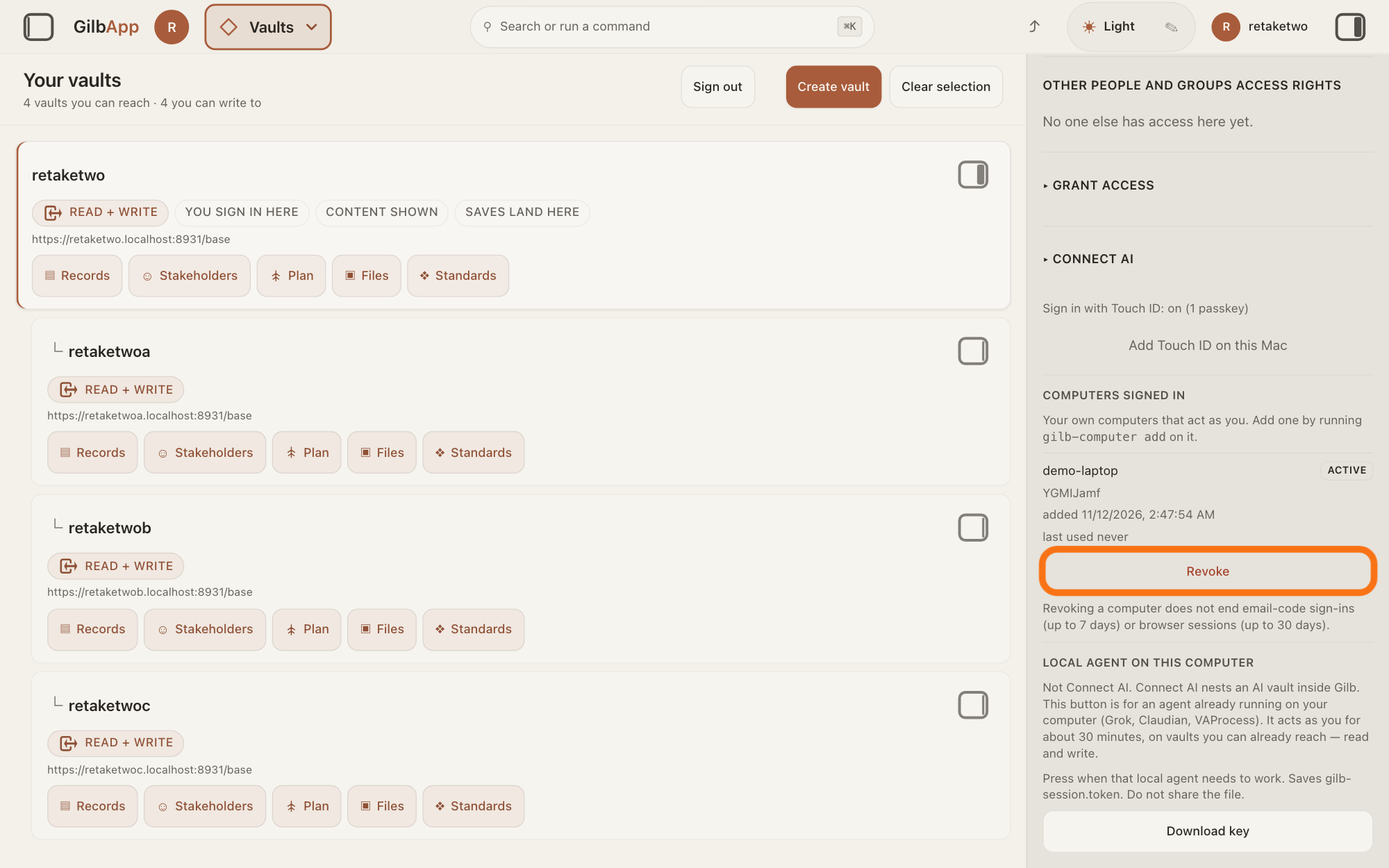
Under COMPUTERS SIGNED IN, press Revoke on the computer's row.
Scroll down the pane, past the access lists, to COMPUTERS SIGNED IN, and find the computer by its name. Press Revoke on its row; the button then reads Confirm revoke.
Show as text
In the right pane, scroll down to "COMPUTERS SIGNED IN". Each computer has a row with its name, a short fingerprint, when it was added and last used, and "ACTIVE" at the right. Press the outlined "Revoke" under the row of the computer you want to remove.
More about this
Revoke cuts the computer off from your account; its row stays, marked REVOKED. The list says Your own computers that act as you. Each row shows the computer's name, its state, ACTIVE, REVOKED or EXPIRED, a short code of 8 characters that names its key, and added and last used with a date, or never. Only an ACTIVE computer has Revoke. No computers yet. means none was ever added. The passkey part above the list and Download key under LOCAL AGENT ON THIS COMPUTER below it are not needed here.
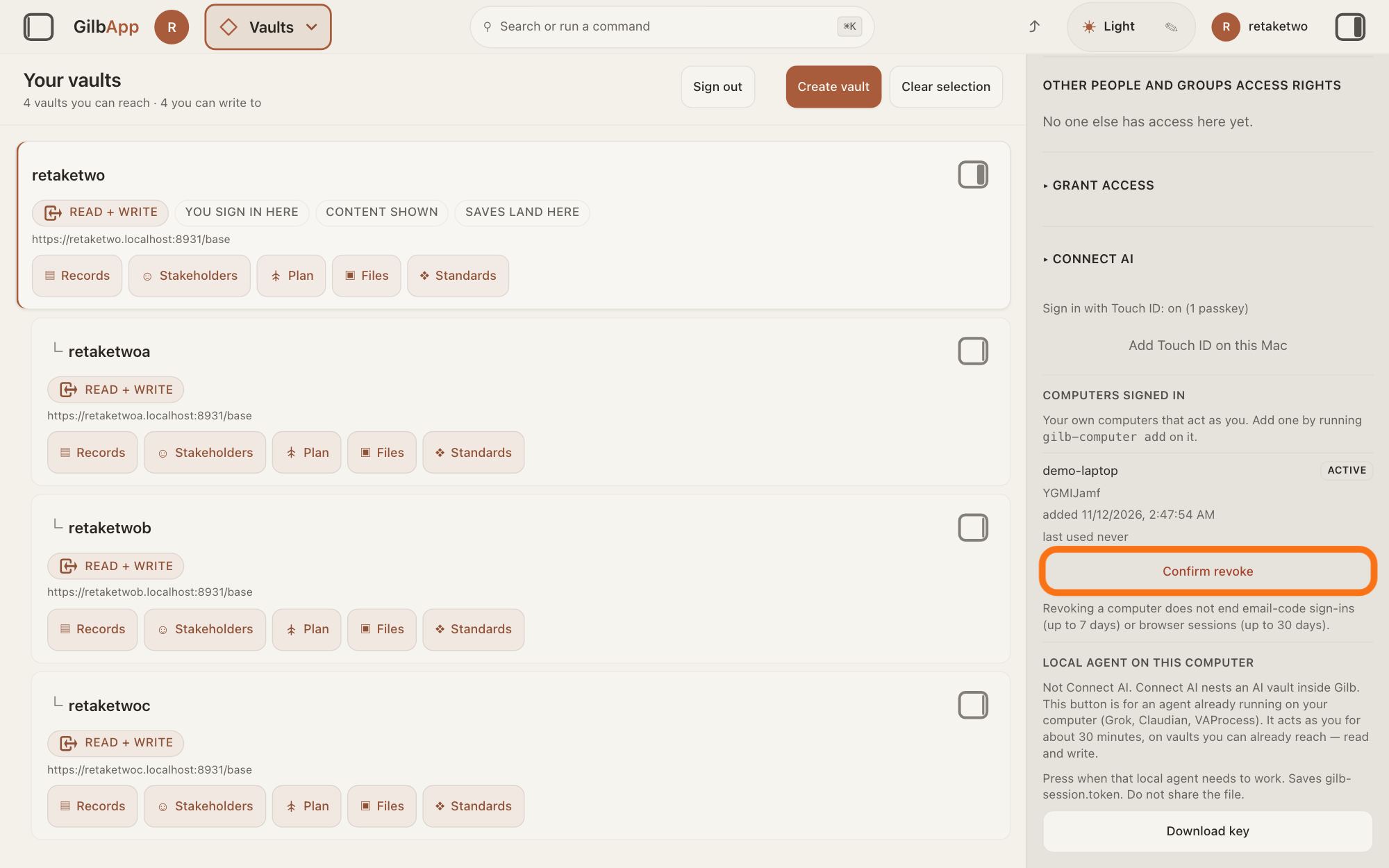
Press Confirm revoke within 5 seconds.
Press Confirm revoke before 5 seconds have passed; GilbApp asks nothing more. The row then shows REVOKED and no button.
Show as text
The same button now reads "Confirm revoke". Press the outlined button within 5 seconds to remove the computer. The line under it says that revoking does not end email-code sign-ins or browser sessions.
More about this
If you wait longer, the button goes back to Revoke and nothing changes. GilbPlatform refuses the computer from its next request. A revoked computer cannot be turned back on: it must be added again. If revoking fails, the row shows the reason under the button.
Deeper
Also asked:
Where do I see which computers are signed in to my account? Under COMPUTERS SIGNED IN, lower down in the pane of any of your vaults: press Main menu, choose Vaults and press a vault card's panel button. You can also search for computers in Search or run a command.
What is Computers signed in? The list of your own computers that act as you, each added by running gilb-computer add on it, with its state: ACTIVE, REVOKED or EXPIRED. Browsers where you are signed in to GilbApp are not in it.
There is a computer in my list I do not know. What do I do? Press Revoke on its row, then Confirm revoke. A computer is added only when someone signed in as you approves it with your passkey, so if it was not you, also make your e-mail account safe and write to [email protected].
A computer here is one of your own computers that acts as you, added by running gilb-computer add on it. GilbApp does not yet say where to get that command, so the list may be empty. An account can have up to 10 active computers. A computer not used for 90 days shows EXPIRED and no longer signs in, without anyone removing it. Revoked and expired computers stay in the list.
Under the list GilbApp says: "Revoking a computer does not end email-code sign-ins (up to 7 days) or browser sessions (up to 30 days)." So if you were signed in to GilbApp in a browser on that computer, that browser stays signed in for up to 30 days after it was last used, and a sign-in made there with an e-mail code, such as an app's, can keep working for up to 7 days, or, in an app that renews it, from 5 minutes up to 14 days, as the app's owner chose; each renewal starts the time again. GilbApp has no way today to sign out a browser on another computer; sign out in that browser itself, and the answer on signing out says what that ends.
Three other things act for you and are not in this list. An AI you connected with ▸ CONNECT AI acts as its AI vault, a small vault that stands for your AI: the answer on taking access away shows how to cut it off. The file gilb-session.token from Download key ends by itself after about 30 minutes. A pairing of GilbApp's chat with your AI ends with Disconnect: the answer on disconnecting your AI shows how.
You can also search for computers in Search or run a command and select Computers signed in: GilbApp opens your own vault's pane at the list. The same gilb-computer command can also revoke the computer it runs on. A computer cannot list or revoke your other computers; GilbPlatform answers that it cannot, and for revoking says to do it in GilbApp.
This answer is written for a computer screen. In a window narrower than 840 pixels, such as a phone, the side panes are hidden and the right pane is Detail in the bar at the bottom.
Source: GilbApp af0f04ee (https://gilb.com/app/version.json read 2026-11-10, dirty false): src/components/computers/ComputersSignedIn.tsx:13-69 (RevokeControl: first click arms Confirm revoke for 5 s, no window.confirm, second click revokes, row error under the button), :71-88 (row: name, state in CSS capitals, fingerprint, added, last used or never, Revoke only when active), :95-145 (heading Computers signed in in CSS capitals, Your own computers that act as you. Add one by running gilb-computer add on it., Loading…, No computers yet., footer "Revoking a computer does not end email-code sign-ins (up to 7 days) or browser sessions (up to 30 days)."); src/components/regions/RightRegion.tsx:1264-1270 (PasskeySignedIn, ComputersSignedIn, LocalAgentTokenButton at the foot of every vault pane, no vault prop); src/components/LocalAgentTokenButton.tsx:28-60 (Local agent on this computer, Download key); src/components/menu/sectionMenuList.ts:360-361 (command Computers signed in, Where you are signed in., keyword computers, openOwnVault(computers)); AppShell.tsx:1721-1723. GilbPlatform 4d008a55 (https://id.gilb.com/version): src/routes/computer.ts:55 and :479-481 (10 active computers), :285-300 (a revoked computer is refused before any computer route answers), :306-320 (fingerprint = first 8 characters of the key thumbprint), :606-616 (list; a computer cannot list computers), :619-639 (revoke; a computer cannot revoke a computer; revoke it in GilbApp), :642-655 (revoke-self), :558-587 (this computer is not active); src/auth/computer-registry.ts:371-383 (revoked; expired after 90 days without use), :477-515 (the active check on every computer request); src/auth/computer-vocab.ts:77-81 (COMPUTER_IDLE_EXPIRY_DAYS = 90). gilb-signin c548c79 node/gilb-computer.ts:2, :25, :180-195 (`gilb-computer add | status | revoke`; revoke calls revokeSelf). No route or GilbApp control signs out other browsers (searched src for everywhere/other sessions; GilbPlatform session routes are session/token and session/dpop-token only). Row: Capability.Setup.ComputerRevoke. Fix for real sign-out (2026-11-11): GilbApp ebd9415e (https://gilb.com/app/version.json read 2026-11-11; ComputersSignedIn.tsx unchanged since af0f04ee, footer still :141) src/lib/base/signOut.ts:19-28 (Sign out posts /onboard/logout); GilbPlatform 498d29a0 (https://id.gilb.com/version) src/routes/onboarding.ts:1315-1377 (signing out in a browser ends that browser's sign-in and its bound keys; only that browser's session); no route signs out another browser (searched src/routes). GilbPlatform 0fc5a548 (https://id.gilb.com/version, read 13 November 2026): src/auth/renewable-sign-in.ts:81-84 (5 minutes to 14 days), :519, :665 (the end moves at each renewal); src/routes/email-auth.ts:440-460; Proc_v_i_c_PublishPagesDev steps 1-2 (the app's owner chooses; 14 days longest and default; 300 seconds shortest). GilbPlatform 0fc5a548 (live build, 14 November 2026): src/routes/computer.ts:412-520 (a computer is added only when approved in a browser signed in as the person, with their passkey).
Checked against GilbApp d529620.